
On This Page
Many users wonder if their iPad can handle communication beyond basic apps. Understanding can you make phone calls on an iPad helps you use your device more effectively for both personal and work needs.
1. Can You Make Phone Calls on an iPad?
Yes, you can make phone calls on an iPad, but not through traditional cellular voice networks like a smartphone. Most iPads rely on internet-based options such as FaceTime Audio, Wi-Fi calling (when linked to an iPhone), or third-party apps like Skype and Zoom.
If you’re wondering, how can I make phone calls from my iPad?, the answer lies in using these connected features with Wi-Fi or mobile data. This makes the iPad a flexible and convenient communication tool.
2. 4 Ways to Make Phone Calls on an iPad

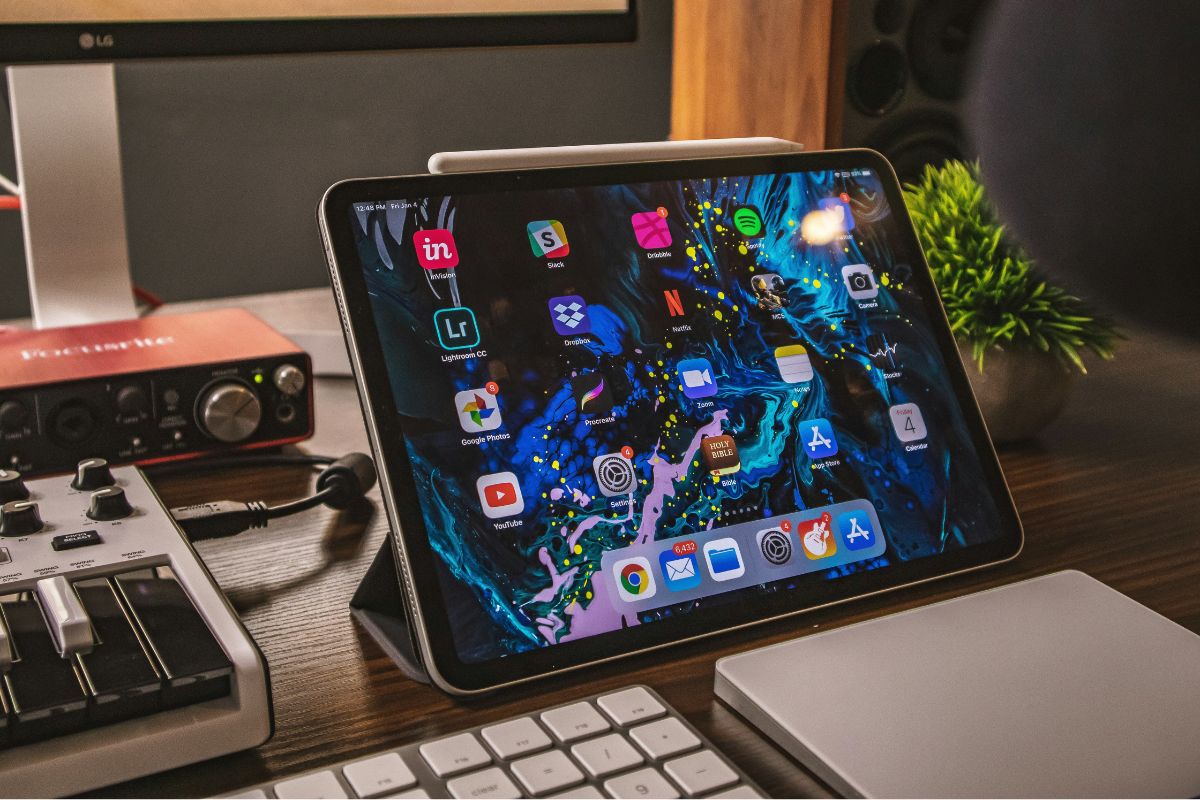
Can you make phone calls on an iPad? Four main ways to make phone calls on an iPad. (Image by Unsplash)
There are several effective ways to make phone calls on an iPad, even without traditional cellular calling features. By using internet-based tools and connected devices, you can turn your iPad into a reliable communication device.
Use FaceTime Audio
FaceTime Audio is one of the easiest ways to make calls on an iPad, as it is built directly into the device. It allows you to call other Apple users over Wi-Fi or mobile data with clear voice quality.
You only need an Apple ID to get started, and calls can be made through the Contacts or FaceTime app. This method is especially convenient for users within the Apple ecosystem who want a simple and seamless calling experience.
Use Wi-Fi Calling with an iPhone
If you have an iPhone, you can enable Wi-Fi calling and link it to your iPad through the same Apple ID. This feature allows your iPad to make and receive regular phone calls using your iPhone’s number, even when the phone is not nearby. It is a practical solution for those who want to extend their calling capabilities across devices.
This setup answers the common question: Can you make phone calls on an iPad, and can an iPad have a phone number? While the iPad doesn’t have its own number, it can use your iPhone’s number.
Use Calling Apps
Third-party calling apps such as Skype, WhatsApp, or Google Voice provide another flexible option. These apps use the internet to place calls to both app users and, in some cases, regular phone numbers.
They are easy to install and often offer additional features like messaging and video calls. This method is ideal if you want more control over how you communicate or need to reach people outside the Apple ecosystem.
Use VoIP Services
VoIP (Voice over Internet Protocol) services allow you to make calls using an internet connection instead of a traditional phone line.
Many VoIP providers offer dedicated iPad apps, along with options to purchase a virtual phone number. This can give your iPad a more phone-like experience, especially for business or international communication. VoIP services are a powerful option for users who need reliable, flexible calling without relying on a standard SIM-based setup.
3. How to Enable Calling on an iPad With an iPhone
Can you make phone calls on an iPad? It is possible if you know how. By connecting your iPad with your iPhone, you can extend calling features across both devices seamlessly. With a few simple settings, you can turn your iPad into a convenient tool for making and receiving calls.
Step 1: Open Settings on Your iPhone
Start by opening the Settings app on your iPhone and navigating to Phone → Calls on Other Devices. This section controls whether your iPhone can share its calling capability with other Apple devices.
Make sure your iPhone is updated and connected to Wi-Fi for the best experience. This initial setup is essential to enable cross-device communication between your iPhone and iPad.
Step 2: Enable Calls on Other Devices
Next, toggle on the option for Calls on Other Devices, then select your iPad from the list of available devices. This allows your iPad to use your iPhone’s cellular connection to handle calls.
If you’ve ever wondered, can you make phone calls on an iPad, this feature is one of the easiest ways to make it possible. Once enabled, your iPad will be ready to receive incoming calls.
Step 3: Sign In With the Same Apple ID
Ensure that both your iPhone and iPad are signed in with the same Apple ID. This is required for the devices to sync properly and share features like calls, messages, and FaceTime. Without the same account, the connection will not work. You can check this in the Settings app under your profile name on each device.
Step 4: Accept Calls on the iPad
After completing the setup, your iPad will ring whenever your iPhone receives a call. You can answer, decline, or even make outgoing calls directly from your iPad using the Contacts or FaceTime app. This creates a seamless experience, allowing you to stay connected without needing to pick up your iPhone every time.
4. iPad Models That Support Cellular Connectivity
Many iPad models come in Wi-Fi and Cellular versions, allowing users to access mobile data anytime without depending on Wi-Fi.
Popular options include the iPad Pro for high performance, iPad Air for balanced everyday use, iPad mini for portability, and the standard iPad for a more budget-friendly choice. These devices support SIM or eSIM, depending on the model, making them flexible for different connectivity needs.
*Important note: The price also varies based on real-time and your region. *
5. Final Words
Exploring can you make phone calls on an iPad shows just how versatile your device can be in everyday communication. Even without traditional calling features, options like FaceTime, Wi-Fi calling, and third-party apps make it easy to stay in touch. With the right setup, your iPad can support both personal and work-related conversations smoothly.