
On This Page
The iPhone 11 remains a popular choice for its reliability, but does iPhone 11 have eSIM technology? The answer is a definitive yes. Every model in the 11 series supports an embedded SIM, allowing you to bypass physical cards for a digital plan. This feature is a game-changer for professionals managing two numbers or travelers seeking local data.
In the guide below, we’ll explore how to unlock this dual-SIM potential and troubleshoot common regional limitations.
1. Does iPhone 11 have eSIM Support?
Totally yes, the iPhone 11 (including the Pro and Pro Max) supports eSIM technology, allowing you to use a digital SIM alongside a physical nano-SIM. This dual-SIM capability lets you keep two different phone numbers or plans on one device, ideal for separating work and personal lines or for travelers who need local data.
Does my iPhone 11 work with eSIM? Your iPhone 11 supports eSIM if it is not a region-specific model from mainland China, Hong Kong, or Macao.
Most iPhone 11 models sold in the U.S., Europe, and many parts of Asia support one nano-SIM plus one eSIM.
To confirm, go to Settings > Cellular, and if you see “Add eSIM” or “Add Cellular Plan,” your phone supports it.
The iPhone 11 allows you to store multiple eSIM profiles, though only one can be active at a time alongside a physical SIM.
In short, does iPhone 11 have eSIM? Yes, setup is simple via QR code scanning or a carrier app, making it a flexible and convenient option.
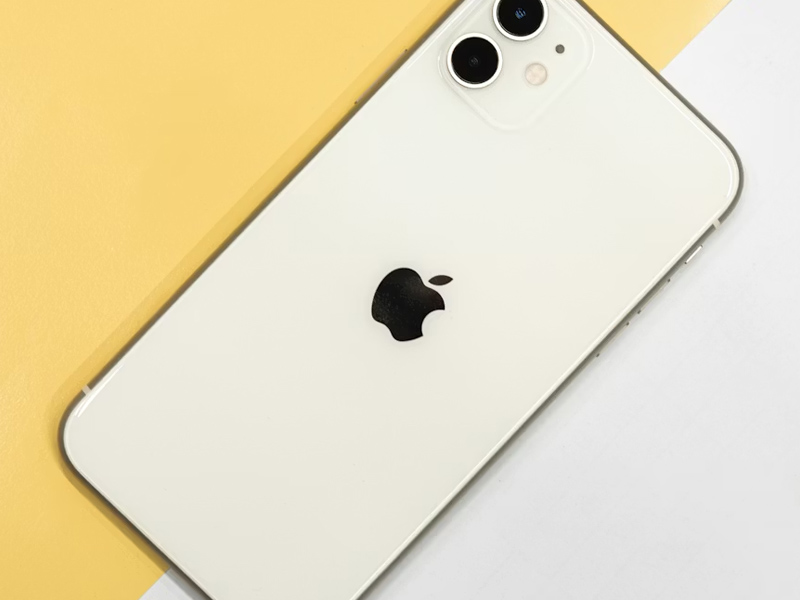
The iPhone 11 supports eSIM technology (Image by Unsplash)
2. How Do I Enable eSIM on My iPhone 11?
iPhone 11 supports eSIM, allowing you to use a digital SIM alongside a physical nano-SIM for dual SIM functionality. This makes it easy to add a second line for travel or work without swapping physical SIM cards. To enable eSIM on your iPhone 11:
Scanning a QR code
Your carrier may provide a QR code to activate your eSIM. To use it:
- Go to Settings > Cellular (or Mobile Data) > Add eSIM (or Add Cellular Plan)
- Select “Use QR Code” and scan the code with your camera.
Using a carrier app
Download your carrier’s app from the App Store, log in, and look for an option labeled “eSIM setup,” “Activate New Line,” or similar in the menu to initiate the installation.
Using carrier activation
If your carrier has already assigned an eSIM to your iPhone 11, follow these steps:
- When you see Carrier Cellular Plan Ready to Be Installed, tap it
- Or go to Settings > Cellular > Carrier Cellular Plan Ready to Be Installed
- Tap Continue
- Wait for activation to complete
Manually entering eSIM information
If your carrier provides eSIM details manually, follow these steps:
- Open the Settings app
- Tap Cellular or Mobile Data
- Select Add Cellular Plan
- Tap Enter Details Manually at the bottom
- Input the eSIM information provided by your carrier
Transferring from Another iPhone
If your previous iPhone is nearby and both iPhones are on iOS 16 or later, you can use **eSIM Quick Transfer **to move your plan digitally.
During the initial setup of your iPhone 11, you may be prompted to transfer your eSIM, or you can go to **Settings > Cellular > Add eSIM **and choose Transfer from Nearby iPhone, then follow the on‑screen instructions on both phones.
3. Can iPhone 11 Use Dual SIM or Dual eSIM?
The iPhone 11 supports dual SIM functionality, allowing users to run two different cellular plans simultaneously. It achieves this by combining one physical nano-SIM card with one digital eSIM. While you can store multiple eSIMs in the settings, the iPhone 11 cannot run two eSIMs simultaneously.
iPhone 11 dual SIM setup
To use dual SIM, you can have a physical SIM and an eSIM active simultaneously. This is ideal for using one number for personal use and another for business, or adding a local data plan when traveling.
Limitations on dual eSIM usage
Unlike the iPhone 13 and later models, the iPhone 11 does not support dual eSIMs, so you cannot use two eSIMs at the same time. Only one eSIM can be active at a time alongside the physical Nano-SIM.
Exceptions for regional models
It is important to note that iPhone 11 models sold in Mainland China, Hong Kong, and Macao do not support eSIM functionality at all. These models feature dual physical SIM slots instead.
iPhone 11 supports Dual SIM functionality (Image by Unsplash)
Understanding the Lifeline Program
Lifeline is a government assistance program designed to ensure that quality telecommunications services are available to low-income households.
Do you qualify?
Only eligible consumers may enroll in Lifeline service, as the program is based on specific income levels or participation in federal assistance programs like SNAP or Medicaid.
Please note that the service is limited to one discount per household and cannot be combined with other Lifeline offers.
How to get started
Step 2: Select your plan and device
Once availability is confirmed, browse and select your preferred Lifeline plan.
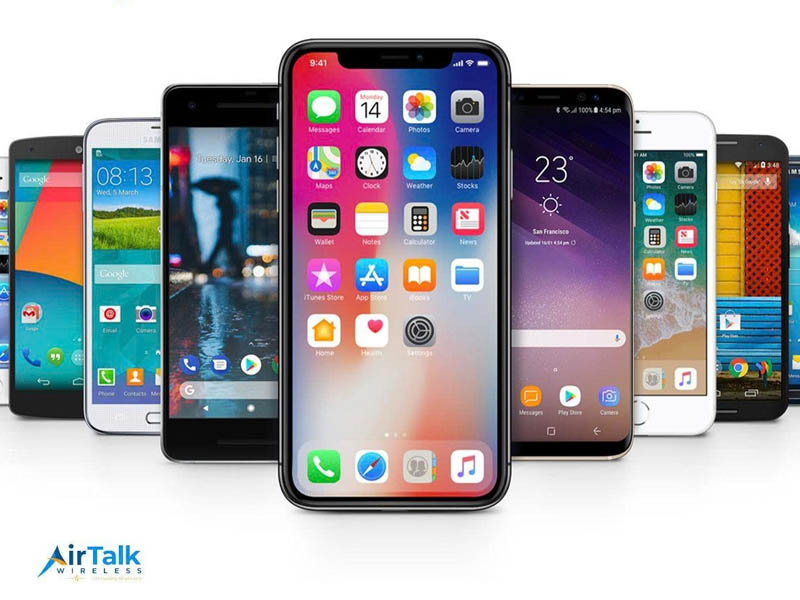
You can then choose your free smartphone from available models like the iPhone 11, iPhone 7, iPhone XR, or Samsung Galaxy A42 5G.
Step 3: Provide personal information
Fill out the online application with your personal details, including your full name, date of birth, address, and the last four digits of your Social Security Number. Ensure this information is accurate to avoid processing delays.
Step 4: Upload verification documents
Upload clear copies of the required documentation. This typically includes:
- Proof of Identity: Unexpired driver’s license, passport, or state ID.
- Proof of Eligibility: A benefits award letter (e.g., for SNAP or Medicaid) or income statements like tax returns or pay stubs.
Review your application and submit it for final review. Most applications are approved within 20-30 minutes, though it can take 3-4 days if further verification is needed.
Once approved, your free phone will be shipped directly to your home.
5. FAQs About iPhone 11 eSIM
How do I activate an eSIM on my iPhone 11?
Go to Settings > Cellular > Add eSIM. You can then scan a QR code provided by your carrier or enter the details manually to start your service.
Can I use two eSIMs at the same time?
No, the iPhone 11 can only have one active eSIM at a time. To use two active lines, you must use one physical SIM card and one eSIM.
Most iPhone 11 models are compatible as long as the device is carrier-unlocked. You can verify this by looking for an “EID” number in your phone’s “About” settings.
How many eSIM profiles can I store on my iPhone 11?
You can store up to 8 or more eSIM profiles on your iPhone 11. While you can keep multiple plans saved for travel or business, the iPhone 11 hardware only allows one eSIM to be active at a time.
Can I use my iPhone 11 eSIM while traveling internationally?
Yes, the iPhone 11 is an excellent travel companion because you can keep your home number on the physical SIM and add a local or international data-only eSIM for your destination.
Conclusion
Mastering the iPhone 11’s eSIM feature transforms your device into a versatile tool for modern connectivity. Whether you are streamlining your professional life with two numbers or avoiding roaming fees while abroad, the dual-SIM flexibility is invaluable.