

On This Page
Sometimes you may want to make a phone call without showing your phone number. This is often called making a restricted call, where your caller ID appears as Private, Unknown, or Restricted on the recipient’s screen.
People choose this option for many reasons. You might want to protect your privacy when contacting someone for the first time, avoid sharing your personal number during business calls, or simply control who can see your phone information.
If you’ve ever wondered how to call restricted, the good news is that most smartphones and carriers support this feature. Whether you use an iPhone or Android device, there are simple ways to hide your caller ID.
1. How to Call Restricted on Any Phone?
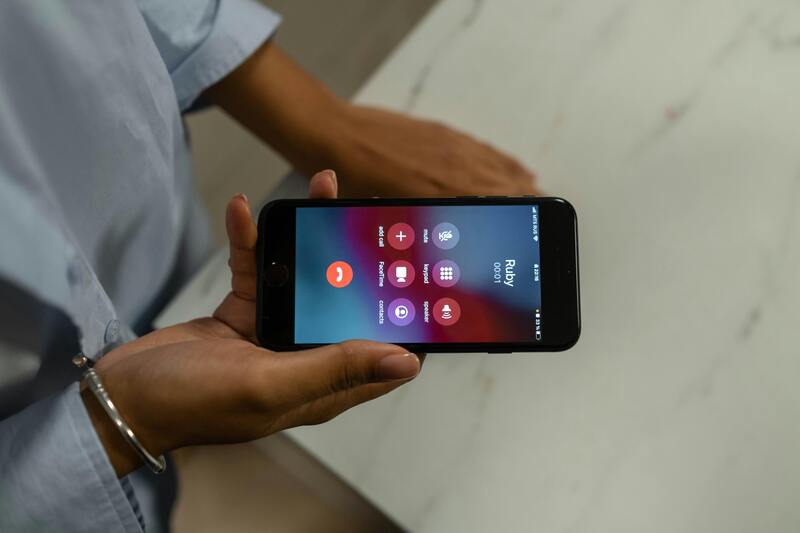
Smartphone settings showing how to call restricted on iPhone and Android devices. (Image by Pexels)
Learning how to call restricted usually involves temporarily hiding your caller ID before dialing a number. Many carriers allow you to do this by using a short dialing code.
The most common method is to add a prefix before the phone number you want to call.
Example format:
*67 + phone number
When you dial using this code:
- Your caller ID is hidden
- The recipient sees “Restricted,” “Private,” or “Unknown”
- Your actual phone number is not displayed
This method works on many networks and is one of the easiest ways to learn how to call restricted from a cell phone.
How to Call Restricted from a Cell Phone?
To make a restricted call on most mobile phones:
- Open the phone dialer
- Enter *67 before the number you want to call
- Dial normally
For example: *67 555-123-4567
The call will go through normally, but your number will remain hidden.
Keep in mind:
- Some carriers or regions may not support this feature
- Emergency numbers cannot be dialed as restricted
- Some people block calls from private numbers
2. How to Call Restricted on iPhone?
If you’re using an Apple device, there are a few different ways to control your caller ID.
One option is the dialing code mentioned earlier, but iPhones also allow you to disable caller ID directly in settings.
Method 1: Use the Dialing Code
The easiest way to learn how to call restricted on iPhone is by dialing: *67 + phone number
This hides your caller ID for that specific call.
Method 2: Turn Off Caller ID in Settings
You can also hide your number permanently.
Steps:
- Open Settings
- Tap Phone
- Select Show My Caller ID
- Turn the toggle off
Once disabled, your number will appear as restricted for outgoing calls.
3. How to Call Restricted on Android?
Android devices also provide multiple ways to hide your caller ID.
Method 1: Dialing Code
Just like on other phones, you can dial: *67 + phone number
This is the fastest method for how to call restricted on Android.
Method 2: Caller ID Settings
Many Android phones allow you to hide your number through system settings.
Steps typically include:
- Open the Phone app
- Tap the menu icon
- Select Settings
- Find Caller ID or Additional Settings
- Choose Hide Number
The exact menu names may vary depending on the device manufacturer.
4. Why Reliable Phone Service Matters for Privacy Features?
Features like restricted calling depend on a reliable mobile network and properly configured phone service.
Without stable phone service, you may experience issues such as:
- calls failing to connect
- caller ID settings not applying correctly
- dropped calls or poor call quality.
Having a dependable smartphone and mobile plan ensures that features like caller ID control, call blocking, and restricted calls work the way they should.
For many households, especially those managing tight budgets, access to reliable phone service can sometimes be a challenge. Fortunately, there are programs designed to help.
For many low-income households, staying connected isn’t just convenient; it’s essential for daily communication, job searches, healthcare access, and family contact.
Lifeline program is afederal assistance program that helps eligible households access affordable phone and internet services. People who participate in qualifying programs such as SSI, SNAP, Medicaid, or other assistance programs may qualify for Lifeline benefits.
- A free or discounted smartphone (depending on available inventory)
- Monthly talk minutes
- Text messaging
- Mobile data access
These benefits help ensure that users can remain connected for everyday communication.
- Apple iPhone 7 or iPhone 8
- Samsung Galaxy A Series smartphones
- Motorola Moto G series devices
- TCL Android smartphones
These phones support many useful features including:
- Caller ID controls
- Privacy options like restricted calling
- Messaging apps
- Internet access
- Video calls and online communication.
- Make and receive important calls
- Manage privacy settings such as restricted calling
- Access online services and communication tools
- Stay connected with family, employers, and healthcare providers.
The application process is designed to be straightforward.
Typical steps include:
- Check eligibility through the Lifeline program
- Start an online application
- Select a device if approved
- Provide verification for a qualifying program (such as SSI, SNAP, or Medicaid)
Once approved, eligible customers can receive their phone and begin using their Lifeline service.
6. FAQs About Restricted Calls
What does it mean to call restricted?
A restricted call hides your phone number so the recipient sees “Private,” “Unknown,” or “Restricted” instead of your actual caller ID.
Is calling restricted the same as a private number?
Yes. Restricted calls and private numbers both refer to calls where the caller ID is hidden.
Can someone trace a restricted call?
While the recipient cannot see your number, carriers and law enforcement may still be able to trace the call if necessary.
Do all carriers allow restricted calls?
Most carriers support restricted calls, but the feature may vary depending on your network and region.
Can I block restricted calls on my phone?
Yes. Many smartphones and carriers allow users to block calls from unknown or private numbers.
Final Thoughts
Understanding how to call restricted gives you more control over your phone privacy. Whether you’re using dialing codes or adjusting settings on your device, hiding your caller ID is usually quick and simple.
With the right device and service, you can manage your calls, protect your privacy, and stay connected when it matters most.