

On This Page
Knowing how to do a 3 way call on Android makes it easier to connect multiple people in one conversation without switching between separate calls. This built-in calling feature allows you to add another participant and merge both calls so everyone can speak together in real time.
In this guide, you will learn the simple steps to start a three-way call on Android, manage participants during the conversation, and understand what phone features are required for conference calling.
1. What Is a 3 Way Call on Android?
A 3-way call on Android is a calling feature that allows three people to participate in the same phone conversation at the same time. Instead of ending one call to contact another person, the caller can add a second participant and merge both calls into a single discussion.
This feature is commonly referred to as conference calling and is supported by most Android smartphones through the built-in Phone app. Once the calls are merged, everyone connected to the conversation can hear and speak to each other in real time.
Many people use this feature for quick group conversations, coordinating plans with family members, discussing work tasks with coworkers, or resolving issues that involve more than one person. Because it works directly through the phone’s calling interface, it does not require installing additional apps.
For users learning how to do a 3 way call on Android, the process usually involves calling one person first, adding another call, and then merging both calls together. The exact steps may vary slightly depending on the Android device and the phone service provider.
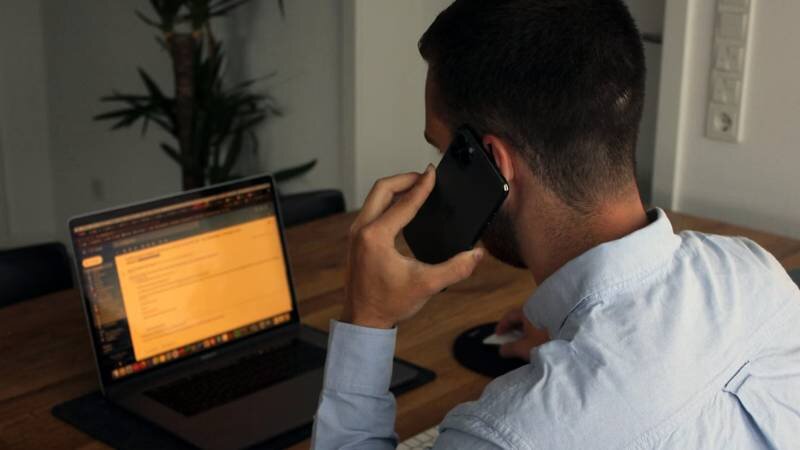
Android makes it easy to manage a 3-way call by adding participants, merging calls, or switching between callers, as long as your phone plan supports conference calling features. (Image by Unsplash)
2. What You Need Before Starting a 3-Way Call on Android
Before starting a three-way call, it is helpful to make sure a few basic requirements are met so the feature works smoothly on your device. While most Android smartphones support conference calling through the Phone app, the ability to merge calls also depends on your phone service plan and network support.
First, your Android device should have the built-in conference calling feature enabled. On most phones, this function appears during a call as options such as Add Call or Merge Calls, allowing you to connect another participant to the conversation.
Second, your phone plan needs to include call management features that support merging calls. Many service plans offer tools such as Caller ID, Call Waiting, Voicemail, and 3-Way Calling, which make it easier to handle multiple calls at the same time.
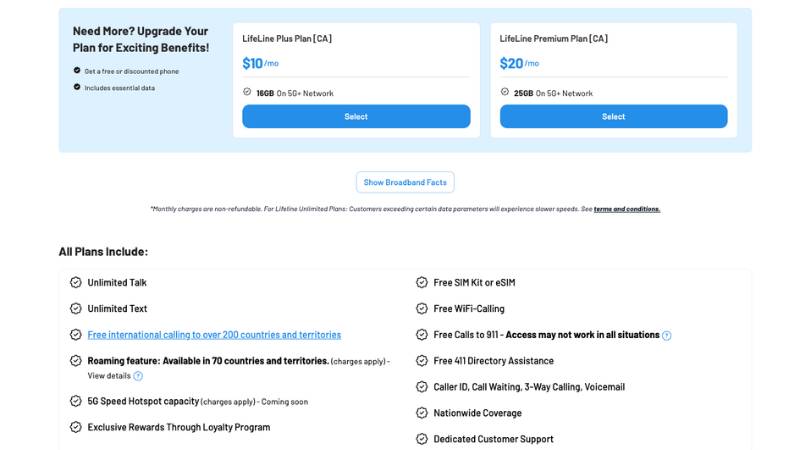
Finally, a stable network connection is important when combining calls. Because your phone must maintain two active calls before merging them into a conference, a weak signal may interrupt the process.
Once these conditions are in place, starting a three-way call on Android usually takes only a few taps on the call screen.
3. How to Do a 3 Way Call on Android
Once your phone plan supports conference calling, learning how to do a 3 way call on Android is simple. The process only requires a few steps inside the Phone app, allowing you to connect multiple people in the same conversation without switching between calls.
Most Android devices follow a similar process for merging calls. The exact layout of the buttons may vary slightly depending on your phone model, but the steps are generally the same.
Call the First Person
Start by opening the Phone app on your Android device and calling the first person you want to speak with. Wait until the call connects and the conversation begins before moving to the next step.
During this time, the first caller will remain connected while you prepare to add another participant to the conversation.
Tap the “Add Call” Button
Once the first call is active, look at the call controls on your screen and tap the “Add Call” option. This button allows you to start another call while keeping the first person on hold.
Your phone will return to the dial screen so you can contact the second participant.
Dial the Second Person
Enter the phone number of the second person or select their contact from your contact list. After dialing, wait until the second person answers the call.
At this stage, your phone will show two separate calls connected to your device.
Tap “Merge Calls”
After the second person answers, tap the “Merge Calls” button on the screen. This action combines both calls into a single conversation so all participants can speak with each other at the same time.
Once merged, the conversation becomes a three-way call and everyone connected to the call can hear and respond to one another.
»> Also read: How to Do a 3 Way Call on iPhone in Seconds (Simple Step-by-Step Guide)
4. How to Manage a 3-Way Call on Android
After starting a conference call, Android devices also provide options to manage the conversation. These tools allow you to add more participants, switch between callers, or end the group call when needed.
Add Another Person to the Conversation
If your phone plan supports it, you may be able to add another participant to the call. To do this, tap “Add Call” again and dial the next contact.
Once the new participant answers, tap “Merge Calls” to combine the calls into a larger conference conversation.
Switch Between Callers
During a conference call, Android may allow you to switch between participants if the calls are not merged yet. This option lets you place one caller on hold while speaking privately with another.
The call screen will usually display controls that allow you to toggle between the connected calls.
End the Conference Call
To finish the conversation, you can simply tap the End Call button on your phone screen. This action will disconnect the entire conference call.
In some cases, Android may also allow you to remove a specific participant from the call while keeping the remaining conversation active.
5. Phone Plans That Support 3-Way Calling
Conference calling usually depends on the mobile service plan provided by your carrier. When a plan supports this feature, users can add another person to an ongoing call and merge conversations directly from the phone without switching between multiple calls.
This capability can be especially helpful for quick group discussions, coordinating plans with family members, or handling conversations that involve more than one person. Instead of calling each person separately, you can bring everyone into the same call and manage the conversation more efficiently.
Many mobile carriers support conference calling as part of their voice services. When the feature is included in your plan, starting a three-way call becomes a simple process that only takes a few taps on your phone screen.
Conclusion
Group conversations often require connecting more than one person at the same time, and Android phones make this possible through the built-in conference calling feature. Understanding how to do a 3 way call on Android allows you to add another participant, merge calls, and manage the conversation directly from your phone.
Once the steps are familiar, starting a three-way call only takes a few taps, making it a convenient way to coordinate plans, discuss topics with multiple people, or handle quick group discussions without switching between separate calls.