
On This Page
eSIM has made it easier for iPhone users to activate service digitally, add a second line, or switch carriers without using a physical SIM card. After setup is complete, one common question comes next: where can you actually see the number linked to that eSIM?
That is why many users search “how to find eSIM number on iPhone”.
This information can be useful when confirming a new activation, checking whether a number transfer worked correctly, managing dual lines, or contacting support about network issues.
The phrase “eSIM number” can refer to two different things:
- Your mobile phone number assigned to the eSIM line
- The ICCID, which is the identification number of the SIM profile itself
Your phone number is used for calls and texts. ICCID is commonly used for technical support, activation checks, and carrier troubleshooting.
This guide explains how to find eSIM number on iPhone, where to check the right information, and how the process works on different models including iPhone 11 and iPhone 13.
1. How to Find eSIM Number on iPhone?
For most users, the quickest method is through the Settings app. Apple stores SIM line information inside the Cellular or Mobile Data menu.
To begin:
- Open Settings
- Tap Cellular or Mobile Data
- Select your active eSIM line
- Review the information shown on screen
Depending on your carrier and iOS version, you may see the line label, phone number, network status, or carrier name. This is usually the easiest answer to “how to find eSIM number on iPhone” when the line has already been activated correctly.
If the number does not appear immediately, it may still be processing through the carrier system or displayed in the provider’s own app instead.
If your iPhone has more than one active line, checking the correct profile first is important. Some users have a personal line and a work line, while others use travel data plans alongside their main number.
Selecting the wrong line can create confusion, especially when troubleshooting service.
That is why the first step in how to find eSIM number on iPhone is confirming which line you actually want to review.

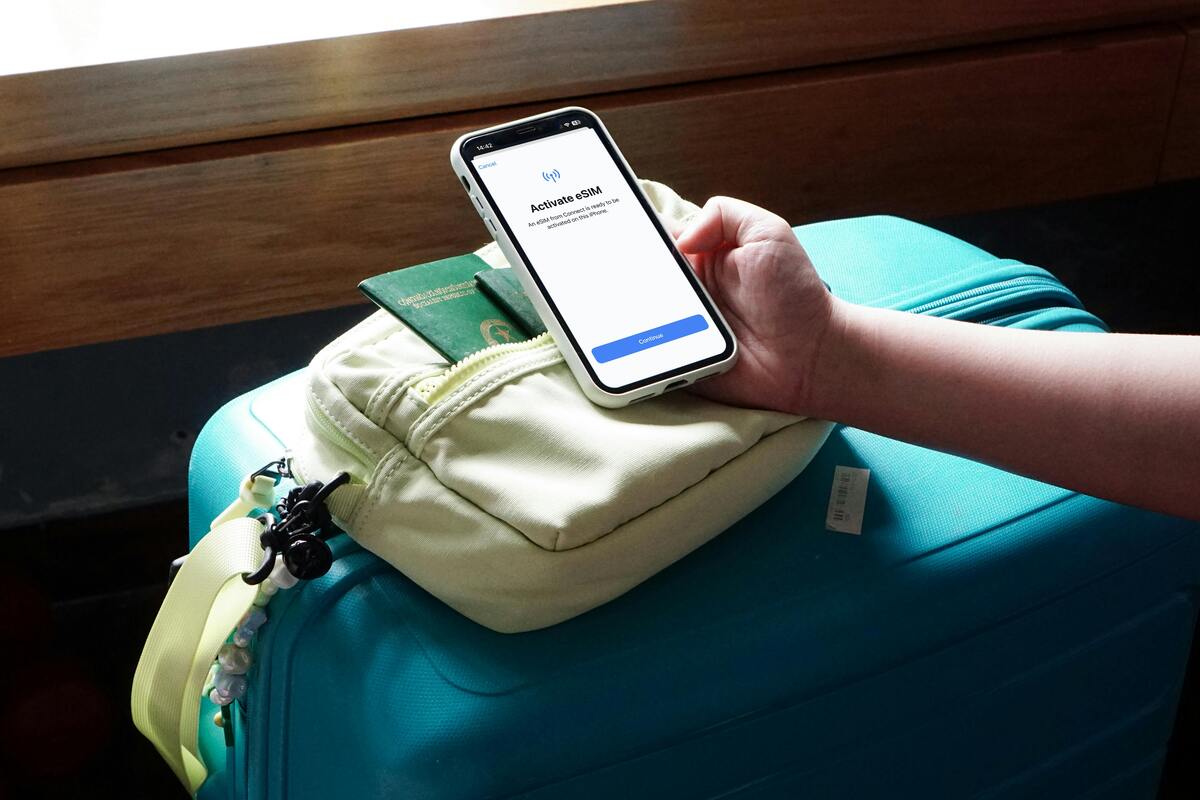
How to find eSIM number on iPhone usually begins in Cellular settings where active line details appear. (Image by Pexels)
Where Exactly to Look: Phone Number vs ICCID?
Many users expect to see one single “eSIM number,” but there are two separate identifiers that serve different purposes.
Phone Number
Your phone number is the number people use to call or text you. It may appear inside the selected cellular line settings or in the Phone settings under My Number.
If your goal is to verify your active mobile line, this is usually the number you need.
ICCID
ICCID stands for Integrated Circuit Card Identifier. It is the unique number tied to the eSIM profile itself.
To locate it:
- Open Settings
- Tap General
- Tap About
- Scroll down until you see ICCID
Carriers may request ICCID when helping with activation, transfers, or SIM-related support.
A phone number identifies your service line. ICCID identifies the SIM profile carrying that service. Understanding the difference can save time when speaking with customer support or resolving setup issues.
How to Find eSIM Number on Specific iPhone Models
The process is similar across most supported** **iPhones, but users often prefer checking by model for clarity.
How to Find eSIM Number on iPhone 11?
On iPhone 11, open Settings, tap Cellular, then select the active line. You may see the assigned number, carrier information, or line label.
To check ICCID, go to Settings, then General, then About.
This remains the standard route for “how to find eSIM number on iPhone 11”.
If the number is missing, your carrier account app is often the next best place to check.
How to Find eSIM Number on iPhone 13?
On iPhone 13, the steps are nearly identical. Open Settings, tap Cellular, then choose the eSIM line you want to review.
You may see the phone number, network details, or carrier label. ICCID is still found under General > About.
This is the most reliable method for how to find eSIM number on iPhone 13.
Because some iPhone 13 models support multiple eSIM lines, selecting the correct profile first is especially important.
Other Models
The same general process also applies to iPhone XS, XR, iPhone 12 series, iPhone 14 series, iPhone 15 series, and newer iPhone SE models that support eSIM.
2. Alternative Ways to Find Your eSIM Number
If the Settings app does not clearly show the details you need, there are several reliable alternatives.
Carrier Mobile App
Many carriers display your active number, line status, and account details inside their official mobile app. This is often the fastest backup option.
Online Account Dashboard
Signing in through your provider’s website can help you view all active lines connected to your account, including eSIM numbers and status.
Customer Support
Carrier support can confirm whether the correct number is linked to your eSIM and whether activation has fully completed.
Activation Emails or QR Setup Messages
Some providers include account details or assigned numbers in activation emails or setup messages sent during installation.
Phone Identity Settings
In some cases, your number may also appear in My Number or Caller ID settings.
These methods are especially helpful when “how to find eSIM number on iPhone” through Settings does not provide enough information.
Final Thoughts
Knowing “how to find eSIM number on iPhone” becomes useful whenever you activate service, move a number, manage multiple lines, or troubleshoot connectivity.
In most cases, the best place to start is Cellular settings, where line details are stored. If you need technical SIM information, the About section is the best place to find ICCID.
Once you understand the difference between your phone number and your eSIM profile identifier, managing digital service becomes much simpler.Whether you use iPhone 11, iPhone 13, or a newer model, the same approach applies: check settings first, then verify through your carrier if needed.