
On This Page
If you’re unsure where to locate your SIM details, this guide on how to find SIM number on iPhone can save you time and frustration. Your SIM number, also called the ICCID, is crucial for activating service, troubleshooting issues, or transferring your number to a new carrier.
1. What is a SIM Number on iPhone?
A SIM number on iPhone, also known as the ICCID (Integrated Circuit Card Identifier), is a unique code assigned to your SIM card or eSIM. It helps carriers identify your mobile account and connect your device to their network.
This number is different from your phone number or IMEI and is often required for activation, troubleshooting, or transferring service.
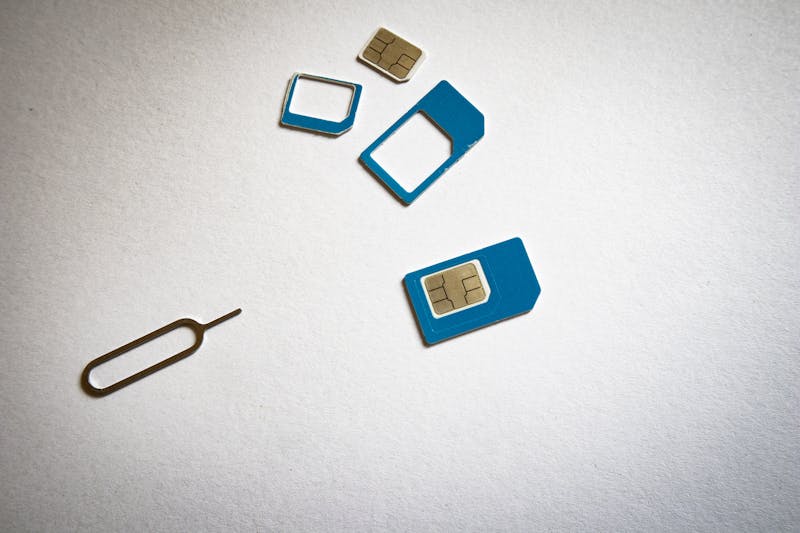
*The SIM number (ICCID) uniquely identifies your SIM card for network connectivity (Image by Pexels) *
2. How to Find SIM Number on iPhone (Step-by-Step)
If you’re wondering how to find SIM number on iPhone, the process is actually quick and straightforward.
Your SIM number (ICCID) can be accessed directly from your device settings or by checking the physical SIM card. Below are the most reliable methods you can use.
Method 1: Find SIM number in settings (Fastest way)
This is the easiest and most common method for both physical SIM and eSIM users:
- Open Settings on your iPhone
- Tap General
- Select About
- Scroll down until you see ICCID
- Your SIM number will be listed there
*You can quickly find your SIM number in your iPhone’s settings (Image by Pexels) *
Method 2: Check the physical SIM card
If you’re using a physical SIM, the ICCID is printed directly on the card:
- Power off your iPhone
- Use a SIM ejector tool to remove the SIM tray
- Take out the SIM card carefully
- Look for a long number printed on the card (this is your ICCID)
Method 3: Use your carrier app
Many US carriers provide SIM details inside their apps:
- Open your carrier’s app
- Log in to your account
- Navigate to Account or Device Info
- Find your SIM or ICCID details listed
Method 4: Check original SIM packaging
If you still have your SIM packaging, look at the card holder your SIM came in; the ICCID is usually printed on the back
3. Where to Find SIM Number on Different iOS Versions
Apple occasionally updates the Settings interface, which can make things look different even though the process remains similar.
Here’s how to locate your SIM number across different iOS versions.
iOS 17 and iOS 18 (Latest Versions)
On newer iOS versions, Apple has kept things simple and consistent. The ICCID is easy to locate within the About section:
- Go to Settings
- Tap General
- Select About
- Scroll down to find ICCID
You may also see multiple ICCIDs if you’re using dual SIM or multiple eSIM profiles.
iOS 14 to iOS 16
For slightly older versions, the steps are nearly identical, though the layout may feel a bit less modern:
- Open Settings
- Tap General
- Select About
- Scroll until you see ICCID
In these versions, the SIM details are grouped with other device identifiers, such as the IMEI and serial number.
iOS 13 and Earlier
On older iPhones running iOS 13 or below, the ICCID is still accessible, but the interface may look different:
- Open Settings
- Tap General
- Select About
- Scroll down to locate ICCID
In some cases, the text may appear smaller or less organized compared to newer versions, but the information is still there.
Key differences to note
While the steps are mostly consistent, here are a few differences across versions:
- Newer iOS versions display multiple SIM profiles more clearly
- Older versions may not label eSIM as clearly
- The layout and design of the About section may vary
4. A Free SIM Card Might Be Yours to Get
If you’re looking for an affordable way to stay connected, the Lifeline program can help.
Lifeline is a U.S. government assistance program that provides discounted or even free phone and internet services to eligible low-income individuals. Depending on your qualification, you may receive a free monthly plan that includes talk, text, and data.
In addition, you can choose to secure a smartphone at a deep discount, from the iPhone 6 series to the iPhone 15 series.
*Offers may vary and are subject to future updates.
5. FAQs
How do I check my SIM card number?
Go to Settings > General > About and scroll down to find the ICCID, which is your SIM card number. This works for both physical SIM and eSIM.
How to know SIM 1 and SIM 2 in iPhone?
On a dual SIM iPhone, go to Settings > Cellular, where each line is labeled (e.g., Personal, Work). You can identify SIM 1 and SIM 2 by their labels and carrier names.
How do I find out my mobile number on my iPhone?
Open Settings > Phone and check My Number at the top. You can also go to Settings > Cellular to see the number linked to each SIM.
Conclusion
Knowing how to find SIM number on iPhone is essential for managing your mobile service, whether you’re activating a plan, troubleshooting issues, or switching carriers. With just a few simple steps, you can quickly access your ICCID and stay in control of your connectivity.