

On This Page
If you’re experiencing issues with your eSIM on iPhone, knowing how to reset eSIM on iPhone can help restore connectivity and resolve network problems. Whether you’re switching carriers, troubleshooting connectivity, or just want a fresh start, resetting your eSIM is a straightforward process.
This guide explains how to reset your iPhone eSIM. We cover every step from profile removal to reinstallation via a carrier app or QR code.
1. How to Reset eSIM on iPhone
How do I reset my iPhone eSIM? If you’re facing connectivity issues or need to refresh your network settings, knowing how to reset eSIM on iPhone can be an effective solution.
Step 1: Remove the eSIM from iPhone
First, you must delete the existing profile from your device. Open the Settings app and select Cellular (or Mobile Data).
Next, tap the specific plan you wish to clear and choose Delete eSIM. Your iPhone will immediately disconnect from the carrier network once you confirm this action.
Step 2: Restart your device
A system reboot ensures that your phone clears any lingering software glitches. Hold the Power and Volume buttons simultaneously until the power-off slider appears.
Afterward, wait at least 30 seconds before you turn the iPhone back on for a complete memory refresh.
Step 3: Reinstall eSIM via QR code or carrier app
The restoration process requires a fresh activation from your service provider. Navigate back to Settings > Cellular and select Add eSIM.
You can then scan the QR code from your carrier or follow the prompts within their official mobile app to link your plan again.
Step 4: Verify Activation
Users should always verify the network status after a reinstallation. Look for your carrier’s name under the Cellular Plans section to confirm the profile is active.
Finally, place a test call or browse a website to check if your mobile data functions perfectly.

*Fix network problems easily by learning how to reset eSIM on iPhone (Image by Pexels) *
2. Common eSIM Issues and Fixes
While eSIM technology offers great convenience, it’s not without its issues. Many iPhone users encounter problems such as activation failures, no service, or difficulty switching between carriers.
- eSIM activation failure: If your eSIM isn’t activating, check to see if you’re connected to Wi-Fi, as an internet connection is required to activate the eSIM. Double-check the QR code or the carrier app for accurate scanning, and contact your carrier if issues persist.
- No service or “SOS Only”: This can happen if your eSIM plan wasn’t installed properly or there’s an issue with your carrier’s network. Try restarting your iPhone or resetting the network settings by going to Settings > General > Reset > Reset Network Settings.
- eSIM not showing in settings: If the eSIM profile doesn’t appear in the Cellular section, remove and reinstall the eSIM using the steps mentioned earlier. Also, make sure your iOS is up to date, as software issues can sometimes affect eSIM functionality.
- Carrier not supported: Some carriers may not support eSIM or may have specific regional restrictions. Check with your carrier to ensure they offer eSIM support for your iPhone model and region.
- eSIM stuck on activation screen: If your eSIM is stuck during activation, try restarting the phone or re-scanning the QR code. If that doesn’t work, contacting your carrier’s support team is your best option.

*eSIM offers convenience but may cause activation, service, or carrier switching issues on iPhones (Image by Pexels) *
3. Tips to Avoid eSIM Issues in the Future
There are several steps you can take to minimize the chances of encountering eSIM problems in the future. Here are some tips to avoid eSIM issues going forward:
- Keep your iOS updated: Make certain your iPhone is running the latest version of iOS, as software updates often contain bug fixes that improve eSIM functionality.
- Backup your eSIM details: Before making changes to your eSIM, back up your cellular settings to avoid losing any important information or configurations.
- Use carrier apps for eSIM activation: Many carriers offer their own apps for easy eSIM activation. This is often more reliable than relying solely on QR codes.
- Verify carrier support: Make sure your carrier supports eSIM for your device model and that you have the correct activation information.
- Monitor network settings: Occasionally, check your network settings and reset them if you experience connectivity issues.
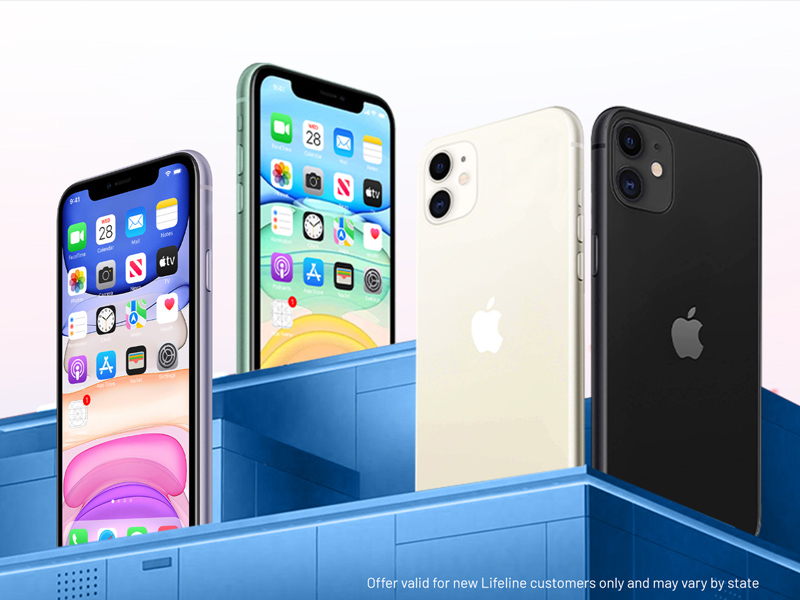
4. You May Qualify for a Free eSIM: Here’s How
- Step 2: Choose your plan:
- Free Phone & Plan: Get a free phone and monthly service.
- Bring Your Own Device (BYOD): Keep your current phone and get a free service plan with eSIM, if compatible.
- Step 3: Pick a phone that supports eSIM from a range of free or discounted devices like Apple, Samsung, and Motorola.
- **Step 4: **Upload your required documents for verification.
Once approved, you’ll be able to enjoy your free eSIM government phone service. Make sure your device supports eSIM to take full advantage of this offer.
5. FAQs
Can I reset eSIM without deleting it?
No, resetting your eSIM generally involves removing the eSIM profile, which deletes it, before reinstalling it.
Is eSIM reset different for each carrier?
Yes, the eSIM reset process may vary slightly depending on the carrier, especially with activation methods like QR codes or carrier apps.
How to reset eSIM connection?
To reset your eSIM connection, go to your device’s settings, find the cellular or mobile data section, and remove or disable the eSIM profile. Then, re-add the eSIM by scanning the QR code or entering the activation details provided by your carrier.
Conclusion
Knowing how to reset eSIM on iPhone is an essential skill for troubleshooting network problems. With just a few steps, you can clear any issues and re-establish service on your device.