
On This Page
If you’re researching how to reset eSIM on iPhone, it usually means you’re experiencing connectivity or activation issues. Resetting an eSIM generally involves removing and reinstalling the digital SIM profile to restore proper network access. Because this action can temporarily interrupt your service, it’s important to understand the potential impact before proceeding.
1. Can You Reset an eSIM on iPhone? (Quick Answer)
There is no single “Reset eSIM” button on the iPhone. Apple does not provide a dedicated option that refreshes only the digital SIM profile with one tap. However, you can address most eSIM-related issues using one of the following methods:
- Reset Network Settings: This refreshes Wi-Fi, cellular, and VPN configurations without deleting your eSIM profile.
- Remove and Reinstall the eSIM: Deleting the digital SIM and reinstalling it through your carrier can resolve activation or signal errors.
- Factory Reset (if necessary): A full device reset may fix persistent issues, but it should be used only as a last resort since it erases all content and settings.
2. Method 1: Reset Network Settings (Safest Option)
When your iPhone shows signal errors, “No Service,” or activation glitches, you don’t always need to remove your eSIM. In many cases, resetting the network settings can resolve connectivity problems without deleting the digital SIM profile. If you’ve been wondering, How do I reset my iPhone eSIM?, this method is often the safest place to start because it refreshes network configurations without affecting your personal data.
Go to Settings
Begin by unlocking your iPhone and opening the Settings app. Apple stores all system and connectivity controls in this menu. Before continuing, you should ensure your device has enough battery power or is connected to a charger.
Tap General
Scroll down and tap General. This section contains core device management tools, including software updates and reset options. From here, you can access advanced settings that affect system behavior.
Select Transfer or Reset iPhone
Next, you scroll to the bottom of the General menu and choose Transfer or Reset iPhone. This area includes different reset and device preparation options. Selecting it does not immediately erase any information. It simply opens the reset controls.
Tap Reset
On the following screen, tap Reset. Your iPhone will display several reset choices, each affecting different parts of the system. It’s important to review the options carefully before proceeding.
Choose Reset Network Settings
Finally, you select Reset Network Settings and confirm your decision. When you complete this step, your iPhone will erase saved Wi-Fi passwords, VPN settings, and cellular preferences, then automatically restart.
The eSIM profile itself remains installed, but the device refreshes its connection to the carrier network. In many situations, this reset resolves minor signal and activation issues without requiring you to reinstall the eSIM.
3. Method 2: Remove and Reinstall eSIM
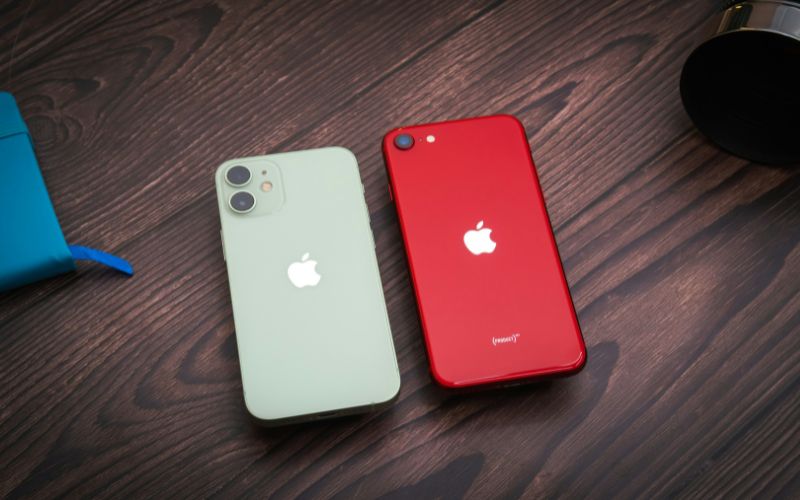
Method 2 is remove and reinstall the eSIM. (Image by Unsplash)
If resetting network settings does not fix your connectivity issue, you may need to fully remove and reinstall the eSIM profile. For users searching for how to reset eSIM on iPhone, this approach is more advanced because it deletes the existing digital SIM and requires fresh activation from the carrier. Since this method temporarily disconnects your service, preparation is important.
Go to Settings → Cellular
Start by unlocking your iPhone and opening the Settings app. From the main menu, tap Cellular (or Mobile Data, depending on your region). This section allows you to manage all active SIM configurations on the device.
Select Your eSIM Plan
Under the Cellular menu, your iPhone will display the installed plans. Tap the specific eSIM line you intend to reset. Before proceeding, you should confirm that you are selecting the correct plan, especially if multiple lines are active.
Tap Remove Cellular Plan
Next, you tap Remove Cellular Plan and confirm your choice when prompted. Once you approve the action, the iPhone immediately deletes the digital SIM profile from its system. At that moment, your phone will lose access to cellular service for that line, including calls, messages, and mobile data.
Contact the Carrier to Reactivate
After removal, you must reach out to your carrier to request reactivation. The carrier typically needs to reprovision your number and generate a new eSIM profile tied to your device’s IMEI. Some providers allow this request through their mobile app, while others require speaking with customer support for verification.
Scan the New QR Code
When your carrier issues a new QR code, return to Settings → Cellular → Add eSIM on your iPhone. Scan the code or enter the activation details manually if instructed. Once the installation completes and signal bars appear, your line is restored, and the reset process is successfully finished.
4. Method 3: Full iPhone Reset (Last Resort)
If previous troubleshooting steps fail to resolve your connectivity problems, a full device reset may be considered. For users searching for how to reset eSIM on iPhone or asking, How do I refresh eSIM on my iPhone?, This method completely restores the device to factory settings and should only be used when other solutions have not worked.
Backup Your Data First
Before proceeding, you should back up all important data using iCloud or a computer. A full reset will erase apps, photos, messages, and saved settings from the device. Creating a recent backup ensures that you can restore your personal information after the reset is complete.
Erase All Content And Settings
Next, go to Settings → General → Transfer or Reset iPhone → Erase All Content & Settings. Your iPhone will prompt you to confirm your decision and may require your Apple ID password. Once confirmed, the device will erase all data and return to its original factory state.
Reinstall eSIM During Setup
After the reset, your iPhone will restart and display the initial setup screen. During the setup process, you can choose to reinstall your eSIM by scanning a new QR code or reactivating through your carrier’s app. In some cases, the system may automatically prompt you to add your cellular plan if it is linked to your Apple ID or carrier account.
Recommended Only for Persistent Issues
A full reset should be reserved for persistent activation failures, recurring “No Service” errors, or corrupted network configurations that cannot be fixed through simpler methods. While effective, this approach requires complete device reconfiguration and reinstallation of apps. For most users, less invasive options are sufficient, making this method a true last resort.
5. Tired of Resetting Network Settings? There May Be a Simpler Option
If you find yourself repeatedly resetting network settings or troubleshooting eSIM errors, the issue may not always be the device itself. While resetting eSIM configurations can solve temporary glitches, recurring problems might signal deeper compatibility or carrier-related limitations. Instead of constantly fixing the same issue, upgrading to a properly provisioned device could be a more stable long-term solution.
In many cases, devices arrive with eSIM already activated, reducing the need for manual resets or repeated setup attempts.
6. Final Words
Learning how to reset eSIM on iPhone can help you resolve signal issues and activation errors without unnecessary stress. In many cases, simple troubleshooting steps are enough, while more advanced resets should be used only when truly needed. Understanding the difference between refreshing network settings and fully removing an eSIM can prevent accidental service interruptions.