
On This Page
If your calls are being redirected to another number, you may need to learn how to turn off call forwarding so incoming calls ring directly on your phone again. Call forwarding is a useful feature, but it can sometimes remain active longer than expected or be enabled accidentally.
This guide explains the simple ways to disable call forwarding on both iPhone and Android devices and restore normal call behavior.
1. What Is Call Forwarding and Why Does It Get Turned On?
Call forwarding is a phone feature that redirects incoming calls from your phone to another number. Instead of ringing on your device, the call is automatically sent to a different phone, such as another mobile number, a home line, or a work phone.
This feature can be useful in many situations. For example, people often enable call forwarding when traveling, using a temporary phone, or when their main device cannot receive calls. Businesses also use call forwarding to route customer calls to another team member or department.
Sometimes the feature is turned on intentionally and simply forgotten later. In other cases, call forwarding may be enabled accidentally through phone settings, carrier dial codes, or network features. When this happens, learning how to turn off call forwarding becomes important so that calls return to ringing directly on your phone.

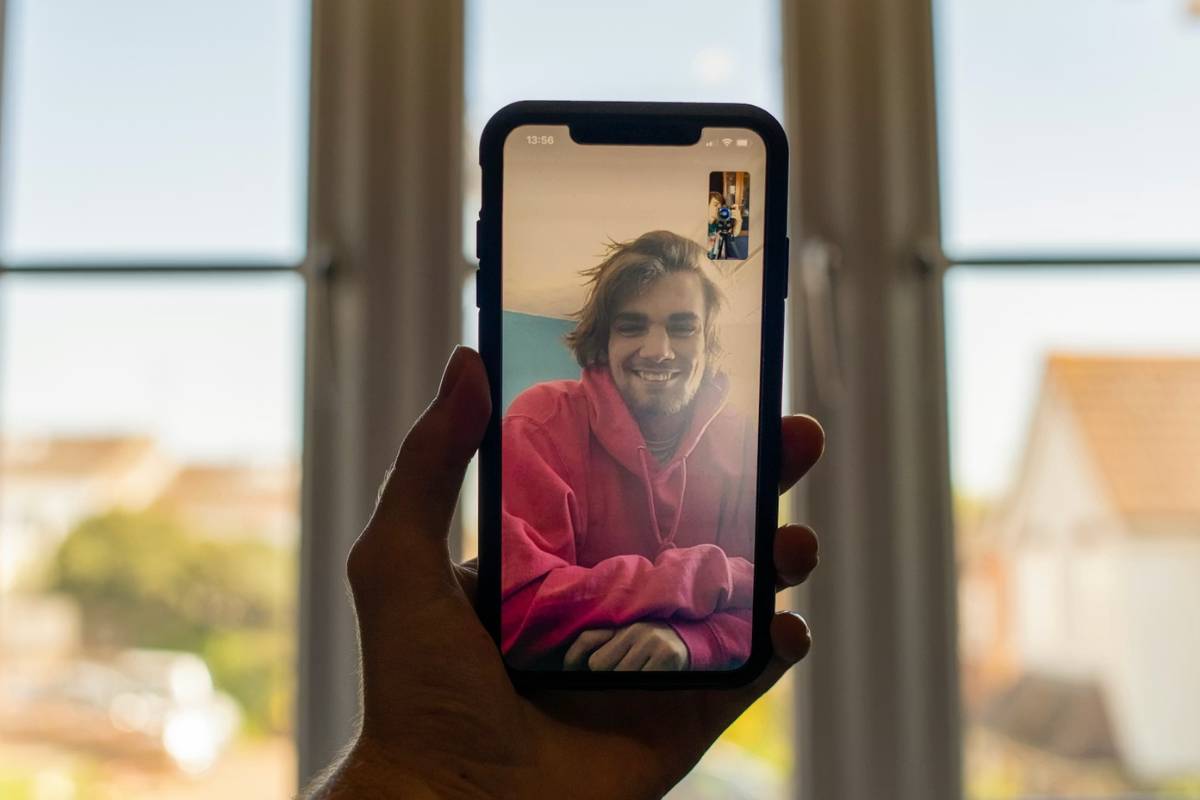
Call forwarding redirects incoming calls to another number and may be turned on intentionally or accidentally through phone or carrier settings. (Image by Unsplash)
»> Also read: What Is Call Waiting iPhone? How the Feature Works and When to Use It
2. How to Turn Off Call Forwarding on iPhone
If call forwarding is enabled on your iPhone, you can disable it through the Phone settings. The process only takes a few steps and will stop your calls from being redirected to another number.
Open Settings and Go to Phone
Start by unlocking your iPhone and opening the Settings app. Scroll down through the menu until you see the Phone option.
Tap Phone to open the call-related settings where features such as voicemail, call blocking, and forwarding are managed.
Tap Call Forwarding
Inside the Phone settings menu, locate the Call Forwarding option. Tap this section to view the current forwarding status.
If call forwarding is active, you will see the feature enabled along with the number to which calls are being redirected.
Toggle Call Forwarding Off
To stop redirecting calls, switch the Call Forwarding toggle to the off position. Once disabled, incoming calls will ring directly on your iPhone again instead of being sent to another number.
After completing these steps, your phone will return to normal call behavior, and callers will reach your device directly.
3. How to Turn Off Call Forwarding on Android
If your Android phone is redirecting calls to another number, you can disable the feature through the phone app settings. Once you understand how to turn off call forwarding, incoming calls will ring directly on your device again instead of being forwarded elsewhere.
The exact steps may vary slightly depending on your Android model and software version, but the process generally follows the same pattern.
Open the Phone App Settings
Start by opening the Phone app on your Android device. This is the same app you normally use to make calls.
Tap the menu icon (usually three dots) located in the upper corner of the screen. From the menu, select Settings or Call Settings to access call management options.
Find Call Forwarding Options
Inside the call settings menu, look for Call Forwarding. On some Android phones, this option may appear under sections such as Supplementary Services, Calling Accounts, or More Settings.
Tap the Call Forwarding option to view the different forwarding rules currently applied to your phone number.
Disable All Forwarding Rules
Within the call forwarding menu, you may see several options, such as forwarding when the line is busy, unanswered, or unreachable.
To fully stop call forwarding, open each rule and disable it or select Turn Off. Once these options are disabled, calls will no longer be redirected to another number.
4. Alternative Ways to Disable Call Forwarding
If you cannot locate the call forwarding settings on your phone, there are other ways to disable the feature, depending on your carrier and device configuration.
Use Carrier Dial Codes
Many mobile carriers provide special dial codes that can quickly disable call forwarding. These codes are entered directly through the phone keypad.
For example, dialing a universal code such as ##002# on some networks can cancel all call forwarding rules. After dialing the code, press the Call button and follow any on-screen confirmation.
Because these codes can vary between carriers, it may be helpful to confirm the correct code with your provider if the first attempt does not work.
Contact Your Mobile Carrier
If you are unable to disable call forwarding through your phone settings or dial codes, contacting your mobile carrier may be the best option.
Carrier support teams can check whether call forwarding is enabled on your account and help remove the forwarding settings. This is especially useful if the feature was activated through network services rather than directly through the phone.
5. Managing Call Features Through Your Mobile Plan
Many call settings on a smartphone are not controlled by the device alone. Features such as call forwarding, call waiting, voicemail, and conference calling are often managed through the mobile carrier’s network, which means the phone plan itself plays an important role in how these tools function.
Understanding how to turn off call forwarding can sometimes depend not only on your phone settings but also on how your mobile carrier manages these call features.
Because of this, the availability and behavior of certain features can vary depending on the service provider. Some carriers include a wide range of call management tools as part of their standard service, while others may limit or charge extra for these options.
For example, users who rely on their phone for daily communication often need flexible call controls. Features like call forwarding help redirect calls when you are unavailable, while other tools allow users to manage multiple incoming calls or keep important conversations from being missed.
These features allow users to manage calls directly from their device settings without needing additional apps. Once the service is active, options such as call forwarding, voicemail, and other call management tools can be adjusted whenever needed to match how the user prefers to handle incoming calls.
For many households, having a reliable plan that supports these everyday calling features makes it easier to stay connected with family members, healthcare providers, schools, and employers.
Conclusion
Understanding how to turn off call forwarding helps restore normal call behavior so incoming calls ring directly on your phone again. By checking your device settings, disabling forwarding rules, or using carrier tools when needed, you can quickly stop calls from being redirected to another number.
Once the feature is turned off, your phone will receive calls normally, and you can manage call settings more easily whenever needed.