

On This Page
Many people search online for how to unlock any phone password using emergency call after forgetting their PIN, pattern, or password. You may have seen videos claiming that dialing certain codes from the lock screen can bypass security and instantly unlock a device.
But does this method really work? Is there a secret emergency code to break a phone password? In this guide, we will explain the truth, answer common questions, and show you safe and legal ways to regain access to your phone.
1. How To Unlock Any Phone Password Using Emergency Call?
The short answer is: modern smartphones cannot be unlocked using emergency call tricks. Today, both Android and iPhone devices use advanced encryption and security systems that cannot be bypassed through the emergency dialer.
Let’s break down the most common related questions.
1.1 How to Use Emergency Call On Lock Screen?
You may wonder, “How to use emergency call on lock screen?”
The emergency call feature allows users to contact emergency services (such as 911 or local emergency numbers) without unlocking the phone. This function is designed purely for safety purposes.
- On Android: Tap “Emergency” on the lock screen and enter an emergency number.
- On iPhone: Tap “Emergency” at the bottom of the passcode screen and dial the number.
The emergency dialer is restricted. It does not provide access to apps, data, or settings. It only allows emergency communication. It is not intended, and cannot be used, to unlock the device.
1.2 Can I Open My Phone If I Forgot My Password?
A very common question is: Can I open my phone if I forgot my password? Yes, but not through emergency call tricks. If you forgot your password, the correct way to regain access depends on your device:
For Android:
- Use Google’s “Find My Device” feature.
- Reset your phone through recovery mode.
- Log in with your Google account after factory reset (if required).
For iPhone:
- Use “Forgot Passcode” (available on newer iOS versions).
- Restore the device using iTunes or Finder.
- Use iCloud’s “Find My iPhone” to erase the device remotely.
1.3 What Is The Code To Break A Phone Password?
Another question often searched online is: What is the code to break a phone password? There is no universal code to break or bypass a phone password.
Modern smartphones are designed with strong encryption systems that protect user data. Any website or video claiming there is a secret emergency call code to unlock any phone is spreading outdated or misleading information.
Trying random codes or even using the unvalidated result you get from searching how to unlock any phone password using emergency call repeatedly may result in:
- Temporary lockouts.
- Permanent device disablement.
- Data loss.
2. Why Emergency Call Unlock Methods Don’t Work Anymore?
If you are still searching for how to unlock any phone password using emergency call, here is the truth you need to know.
Emergency call bypass methods do not work anymore because smartphone security has significantly improved.
Today’s Android and iPhone devices use:
- Advanced encryption algorithms.
- Biometric authentication (fingerprint, Face ID).
- Secure boot systems.
- Account verification after reset (Factory Reset Protection).
Even if someone gains physical access to your phone, they cannot unlock it without proper authentication. Software updates also patch any vulnerabilities quickly. What may have worked on a very old operating system version no longer works on modern devices.
3. Safe And Legal Ways To Regain Access To Your Phone
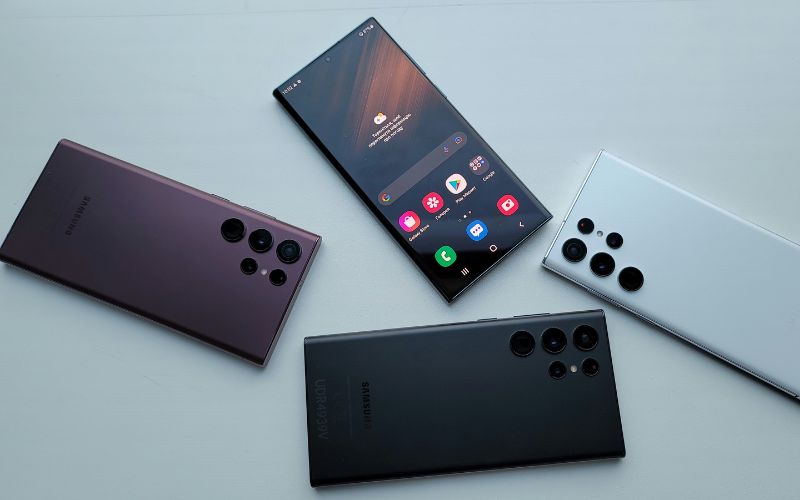
Three ways to reassess phone if you’re searching for how to unlock any phone password using emergency call. (Image by Unsplash)
If you are searching for how to unlock any phone password using emergency call because you are locked out of your phone, here are safe and legal solutions:
3.1 Use Official Account Recovery
The safest and most authentic answer to your question of how to unlock any phone password using emergency call is to use the official account to recover it. Specifically:
- For Android devices, log in to your Google account to manage or reset the device through official tools.
- For iPhone users, sign in to your Apple ID account to erase and restore your phone.
3.2 Perform A Factory Reset
If account recovery does not work, you may need to reset your phone through recovery mode. This removes the password but also deletes stored data.
3.3 Visit An Authorized Service Center
If you cannot access your account credentials, contacting the device manufacturer or an authorized service provider is also considered the safest option.
Another thing you need to aware when reading results from searching for how to unlock any phone password using emergency call, avoid third-party unlocking tools that promise instant access. Many are scams or may install harmful software on your device.
4. How To Apply For A Free Mobile
If your phone cannot be recovered, is damaged, is no longer usable, or there is no satisfactory answer for your search of how to unlock any phone password using emergency call, applying for a Lifeline free phone may be a practical solution. Here’s how the process works.
4.1 Step 1: Verify Eligibility
Before submitting an application, it’s important to determine whether you qualify for the Lifeline program. The Lifeline program is a federal assistance program that helps eligible participant lower their phone service or internet service.
Its eligibility is generally based on your total household income or your participation in certain government assistance programs. These programs commonly include Medicaid, SNAP (Food Stamps), Supplemental Security Income (SSI), and Federal Public Housing Assistance.
To verify that you qualify, you will typically need to provide supporting documents, such as:
- Proof that you are enrolled in a qualifying assistance program, such as an official approval or award letter.
- Income documentation, which may include recent pay stubs, tax returns, or a Social Security benefits statement.
- Choose your plan: Review the available Lifeline plans in your location and select the option that matches your talk, text, and data needs.
- Select a device or bring your own: You can choose from available free or discounted smartphones, or keep your current device by entering its IMEI number through the Bring Your Own Device (BYOD) feature.
4.3 Step 3: Enter Personal Information And Upload Documents If Required
At this stage, you will complete the application by entering your personal information. If necessary, you may also be asked to upload documents that confirm your eligibility, such as income verification or proof of participation in a government assistance program.
If the system cannot automatically verify your information, you will receive instructions to manually upload the appropriate documentation so your application can move forward.
After approval, your free government phone will be mailed directly to your home at no charge, allowing you to stay connected without additional financial strain.
5. Final Words
Searching for how to unlock any phone password using emergency call is understandable when you’re locked out of your device. However, emergency call methods and secret codes do not work on modern smartphones.
If you forgot your password, use the official recovery tools provided by Google or Apple. These methods are safe, secure, and legal. If your device is no longer accessible, exploring legitimate replacement options, such as a free government-supported phone, can help you stay connected without financial strain.