
On This Page
Switching to a new iPhone or preparing your smartwatch for resale often requires users to learn how to unpair Apple Watch correctly. Completing the process the right way helps protect personal data, removes the activation lock, and creates a backup before resetting the device.
This guide explains the safest steps to disconnect your watch smoothly while avoiding common syncing or setup issues on newer Apple devices in 2026.
1. Why People Unpair Apple Watches?
Many Apple Watch users disconnect their devices for practical reasons related to upgrades, troubleshooting, or account management. Completing the unpairing process correctly helps preserve backups, remove the activation lock, and prepare the watch for a smoother setup later.
Upgrading to a New iPhone
Moving to a newer iPhone often requires users to disconnect their Apple Watch before pairing it with another device. Unpairing allows the watch to create a fresh backup, making it easier to restore settings, apps, and health data during the setup process.
Skipping this step may lead to pairing errors or missing information after switching phones. Properly disconnecting the watch also helps ensure Apple ID synchronization continues smoothly between devices running newer versions of iOS and watchOS.
Selling or Trading The Watch
Preparing an Apple Watch for resale involves more than simply erasing the screen. Unpairing removes personal information, disables Activation Lock, and disconnects the watch from the original Apple account before another person starts using it.
Buyers may experience setup restrictions if the previous owner forgets to complete the unpairing process correctly. Removing the device properly also protects payment information, fitness records, notifications, and other private data stored on the watch.
Troubleshooting Syncing Problems
Connection issues between an Apple Watch and iPhone sometimes appear after software updates, Bluetooth interruptions, or failed syncing attempts. Unpairing and reconnecting the device can refresh communication settings and help restore normal performance.
Many users use this method when notifications stop appearing, apps fail to update, or health tracking data no longer syncs correctly. Resetting the connection often resolves smaller software conflicts without requiring advanced technical support.
Resetting The Device
Factory resetting an Apple Watch is common when performance becomes unstable or when storage problems begin affecting everyday use. Unpairing first ensures important information is backed up before the watch returns to default settings.
This process can also help remove corrupted settings, outdated connections, or persistent software glitches. Starting with a clean setup often improves battery behavior, app responsiveness, and overall watch performance after major updates or long-term use.
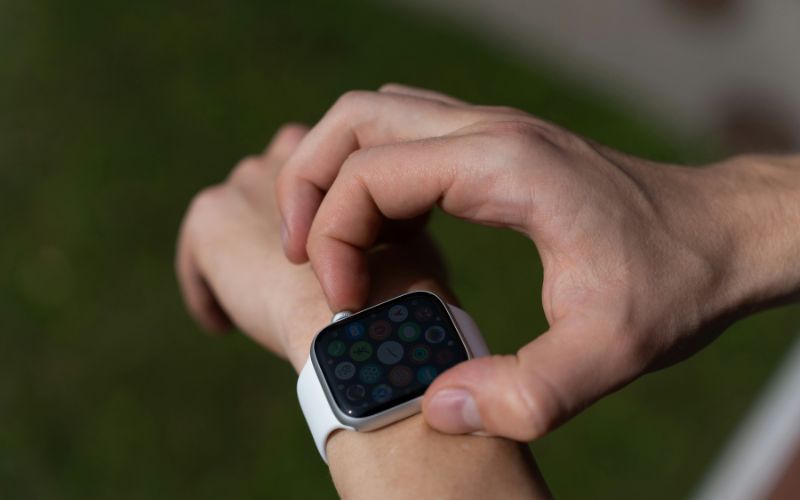
The reason why some people unpair Apple watches. (Image by Unsplash)
2. Step-by-Step: How to Unpair Apple Watch from iPhone
Unpairing works best when both devices stay close and have enough battery to complete the process without interruption. Following each step carefully helps protect your backup, remove account links, and prepare the watch for a clean reset.
Keep the Watch Near the iPhone
Before starting, place the Apple Watch and iPhone close together so they can communicate during the entire process. A stable connection helps the iPhone create a recent backup and send the proper reset commands to the watch.
A low battery or a weak Bluetooth connection may interrupt the unpairing process. Keeping both devices charged and nearby reduces the chance of errors, especially when users are learning how to unpair an Apple Watch for the first time.
Open the Watch App
Open the Watch app on your iPhone before removing the device. This app manages pairing settings, backups, and synchronization features between both devices, making the unpairing process safer and more reliable than resetting the watch manually.
Starting from the iPhone also helps create a backup automatically before the reset begins. Important information, such as settings, app layouts, and health data, can be restored more easily later when the setup process is completed correctly through the Watch app.
Select the Watch to Remove
Inside the Watch app, go to the section that shows your connected Apple Watch, then tap the information icon next to the device name. This screen allows you to view pairing details and choose the option to remove the watch.
Selecting the correct watch matters if more than one device has been paired with the same iPhone. Checking the name and model first helps prevent accidentally removing the wrong Apple Watch from your account.
Confirm Unpairing
After selecting the device, tap the unpair option and confirm your choice when prompted. Users with a cellular Apple Watch may also need to decide whether to keep or remove the mobile plan, depending on future use.
You may be asked to enter your Apple ID password to turn off Activation Lock. This step is important because it allows the next setup process to continue without account-related restrictions or ownership errors.
Wait for The Reset Process to Finish
The iPhone will begin creating a backup while resetting the Apple Watch to factory settings. This stage may require several minutes to complete, so both devices should stay close together with Bluetooth enabled to avoid interruptions during the removal process.
When the reset completes, the Apple Watch will return to the original setup screen. The device can then connect to another iPhone, restore saved information from a backup, or be prepared for resale without leaving personal account details linked to the watch.
3. How to Unpair Apple Watch Without Phone?
Losing access to the paired iPhone does not always mean the Apple Watch becomes unusable or permanently connected. Apple provides several ways to reset the device directly from the watch itself, although some account-related restrictions may still require additional steps afterward.
Reset Directly from the Watch Settings
Users without their paired iPhone can still reset the Apple Watch through the device settings menu. Opening Settings, selecting General, and choosing the reset option allows the watch to disconnect from existing data and return to its default state.
This method is often used when the original iPhone is lost, damaged, or no longer available. Keeping the watch charged during the process helps prevent interruptions while the system removes stored settings and account connections from the device.
Erase All Content and Settings
Choosing “Erase All Content and Settings” removes apps, messages, health information, and saved preferences from the Apple Watch. The device will restart and return to the same setup screen shown when it was first purchased.
Although this process clears local data, it does not always remove the activation lock automatically. Users planning to give away or resell the watch should confirm that all personal information has been removed completely before another person attempts to set up.
Remove the Device from the Apple ID if Needed
After resetting the Apple Watch without an iPhone, some users may still need to remove the device manually from their Apple account. This step can usually be completed through Apple ID settings on another Apple device or through iCloud online.
Removing the watch from the Apple ID helps disable Activation Lock completely. Without this step, the next user may be unable to activate the watch because the system still recognizes it as connected to the previous owner’s account.
4. How to Unpair Apple Watch From Old Phone?
Switching to a newer iPhone can sometimes create pairing issues if the Apple Watch is still connected to the previous device. Completing the transfer carefully helps preserve backups, restore settings more smoothly, and reduce the risk of syncing or Activation Lock problems during setup.
Back Up the Old iPhone
Creating a recent backup on the old iPhone helps protect important information before moving the Apple Watch to another device. Health records, app preferences, watch settings, and saved data are easier to restore later when the backup process is completed properly.
Using iCloud or a computer backup also helps keep Apple Watch information connected to the latest iPhone data. Checking that the backup finished successfully before changing devices can reduce setup problems after the transfer begins.
Unpair the Watch Properly
Removing the Apple Watch through the Watch app on the old iPhone is one of the safest ways to disconnect the device. People learning how to unpair Apple Watch correctly often use this method because it automatically creates a backup while removing the connection between the smartwatch and the previous phone.
Skipping the official unpairing process may lead to syncing errors or activation lock complications later. Keeping both devices nearby and connected during removal helps ensure account settings and stored information are handled correctly before pairing again.
Sign in to the Same Apple ID on the New Phone
Using the same Apple ID on the new iPhone allows the Apple Watch to reconnect more easily during setup. Apple services such as iCloud, Health, and Find My work more smoothly when the same account remains active across both devices.
After signing in, users can restore watch data from the most recent backup and continue using apps, notifications, and saved preferences with fewer interruptions. Stable internet access during setup may also help speed up synchronization between the new iPhone and Apple Watch.
5. How Smartwatches & Mobile Devices Work Together: Get a Phone to Use Alongside Your Smartwatch
Smartwatches depend heavily on connected mobile devices for calls, notifications, app syncing, GPS functions, and software updates. Using a dependable smartphone alongside your wearable device can improve daily connectivity while making backups, pairing, and account management much easier over time.
- Check eligibility through qualifying programs such as Medicaid, SNAP, SSI, or based on household income guidelines.
- Select a suitable service plan and review device choices that work well with smartwatch syncing and mobile apps.
- Complete the online application using your personal information and upload documents only if additional verification is requested.
- Submit the application and wait for approval updates. Eligible users typically receive their free phone within 7-10 business days, along with activation instructions after shipping begins.
Final Words
Learning how to unpair Apple Watch correctly can help protect your personal data, avoid activation issues, and prepare the device for a reset, upgrade, or new user. Following the proper steps also helps ensure your watch remains backed up and connected smoothly to your Apple account when needed later.