
On This Page
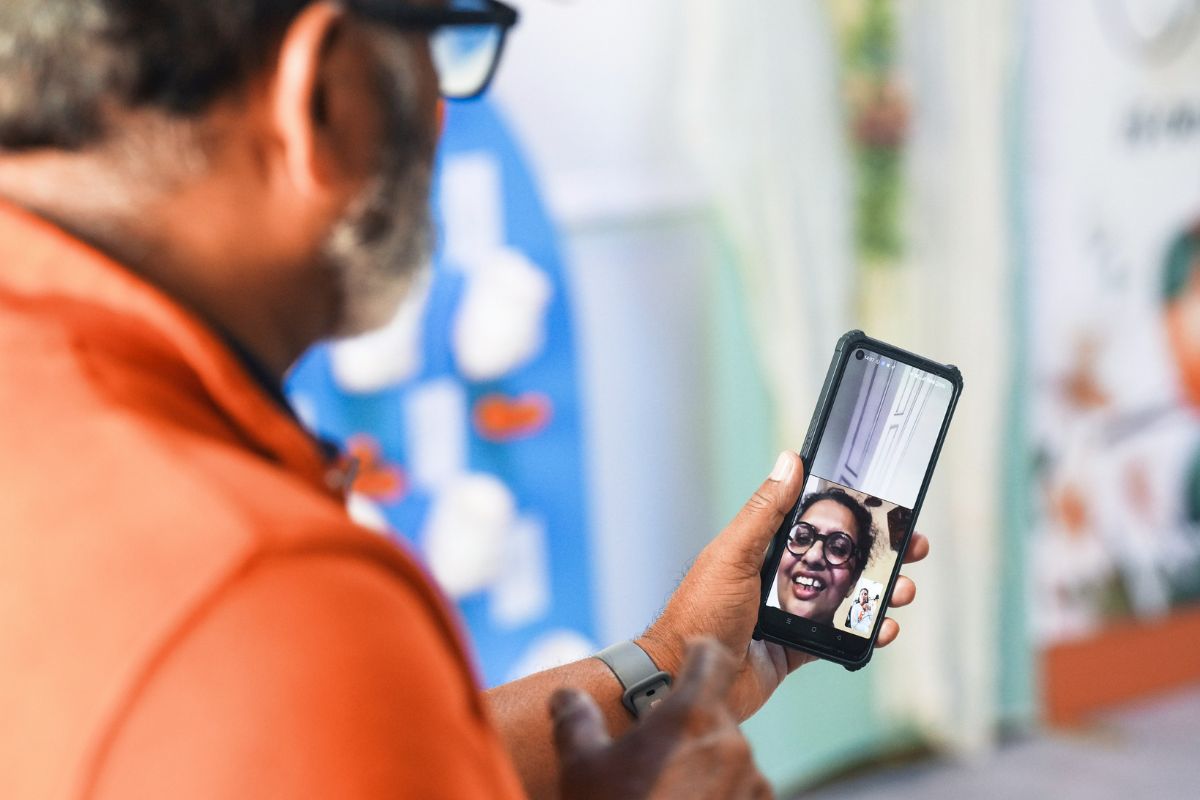
Learning how to video call on Android is a fundamental skill for anyone who wants to stay connected with family or colleagues in our digital society. Because visual communication allows for a more personal connection than traditional voice calls, it has become the standard for both professional meetings and social gatherings.
1. Three Simple Steps to Start a Video Call on Android
Most modern Android smartphones come equipped with native video calling features built into the system software. This means you often don’t need to download extra apps to start clear video calls. If you are looking for the fastest way to video call on Android, follow these three direct steps:
- Step 1: Open Your Contacts or Dialer App. Launch the application you normally use to make voice calls. Locate the person you wish to reach by searching your contact list or viewing your recent call history.
- Step 2: Tap the Video Camera Icon. Once you have selected a contact, look for a small icon that resembles a video camera. This icon is typically located next to the standard telephone icon or at the top of the contact details screen. Tapping this will immediately initiate a request to start a video stream.
- Step 3: Manage In-Call Features. Once the call connects, you can customize your experience using the on-screen controls. Most interfaces allow you to “mute” your microphone, “flip” the camera to show your surroundings with the rear lens, or “add” more people to turn a one-on-one chat into a group session.
By following this 1-2-3 sequence, you can master the basics of how to video call on Android using the tools already built into your device.
2. Top Platforms for High-Quality Android Video Calls
While the native dialer is convenient, many users prefer third-party applications for their specialized features and cross-platform compatibility to answer the question “how to video call on Android”.
Exploring these platforms is an essential part of understanding how to video call on Android in a diverse digital environment.
- Google Meet: As the built-in standard on Android, it offers exceptional stability and high-definition video. It is often the default choice for professional consultations and academic meetings because it integrates seamlessly with Google Calendar and Gmail.
- WhatsApp: Known for its end-to-end encryption, WhatsApp is the global favorite for personal communication. It allows Android users to call friends on any platform, ensuring your virtual reach isn’t limited by the type of phone your contact uses.
- Facebook Messenger: For those who manage their social lives through Meta’s ecosystem, Messenger provides a fun and intuitive way to video call on Android. It features various filters and interactive effects that can make casual conversations more engaging for families and children.
3. Maximizing Your Video Call Experience
Starting the call is only the beginning. To ensure that your video is clear and your audio is synchronized, you must optimize your connection and your hardware.
3.1. The Importance of High-Speed 5G and Network Stability
Video calling is data-intensive. If you find yourself asking why your call is lagging or pixelated, the culprit is almost always your network strength.
In 2026, 5G connectivity has become the standard for mobile communication. A stable 5G signal ensures that the data packets responsible for your video and audio streams are delivered without interruption.
When you are learning how to video call on Android, always try to ensure you have at least three bars of service or a strong Wi-Fi connection to prevent the “frozen screen” effect that can disrupt important conversations.
3.2. Optimizing Hardware: Camera Clarity and Battery Management
Hardware quality plays a significant role in your virtual presence. Always ensure that your front-facing camera lens is clean; a quick wipe with a microfiber cloth can significantly improve clarity.
Additionally, video calls use a tremendous amount of battery power because they keep the screen, camera, and high-speed modem active simultaneously.
To prevent your phone from shutting down in the middle of a call, it is a good practice to start your sessions with a full charge or keep a charger nearby for longer professional meetings.
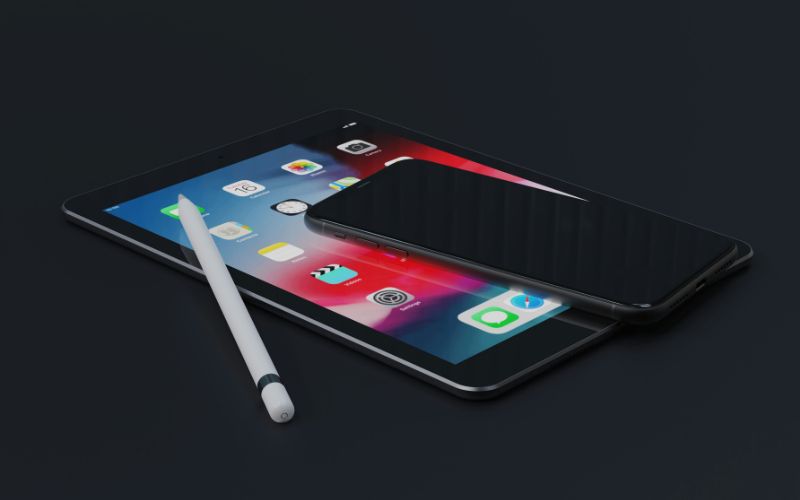
If your current device is outdated and struggles to maintain a clear connection, you may be eligible for a significant upgrade through the federal Lifeline program. This ongoing benefit ensures that everyone has access to the tools needed for modern communication.
4.2. How to Secure Your High-Quality Android Device in 4 Simple Steps
After you have all the information about how to video call on Android, securing your connectivity tools is a straightforward digital process that can be completed in minutes:
Step 1: Check Eligibility.
Determine if you qualify via household income (at or below 135% of federal guidelines) or participation in programs like SNAP, Medicaid, or SSI. It is highly recommended that you prepare your documents, such as your ID and benefit award letters, before you start.
Step 3: Enter Personal Information and Upload Documents if required.
Provide your legal details for the federal verification check. While many applicants are verified automatically, you may need to manually upload proof of eligibility if the system requires it.
**Step 4: Complete the Application and Wait for Delivery. **
5. Final Words
Mastering how to video call on Android is about more than just understanding the software; it is about ensuring you have the right hardware and network to support your digital life. By following the 3-step dialing guide and utilizing the federal Lifeline program, you can stay connected with clarity and confidence.