
On This Page
Learning how an iPad SIM card works is essential in ensuring that one stays connected even in situations where there is no access to Wi-Fi. This is important in ensuring that one enjoys a smooth and effective mobile experience with the right setup on their iPad device.
1. What Is an iPad SIM Card?
iPads are designed to offer flexibility, whether you’re connected to Wi-Fi or using mobile data on the go. Understanding how SIM cards work in these devices can help you choose the right option for your needs.
The Overview of an iPad SIM Card
An iPad SIM card is a small chip that allows cellular-enabled iPads to connect to a mobile network for internet access without relying on Wi-Fi. It stores subscriber information and enables features like mobile data, making your device more versatile.
If you’re wondering, do iPads have SIM cards? The answer is yes, many models support either a physical SIM card, an eSIM, or both, depending on the version.
Benefits of Using a SIM Card in an iPad
Using a SIM card in your iPad brings added convenience and flexibility, especially when you need internet access outside of Wi-Fi zones. It transforms your device into a more powerful, always-connected tool for both work and entertainment.
- Stay connected anywhere: Access the internet on the go without depending on public Wi-Fi networks.
- More secure browsing: Reduce risks associated with unsecured public Wi-Fi connections.
- Better productivity: Work, send emails, and join meetings from virtually any location.
- Reliable performance: Enjoy stable connectivity through your mobile carrier’s network coverage.
- Flexible data plans: Choose plans that fit your usage, whether for short trips or daily use.
2. Which iPads Support SIM Cards?
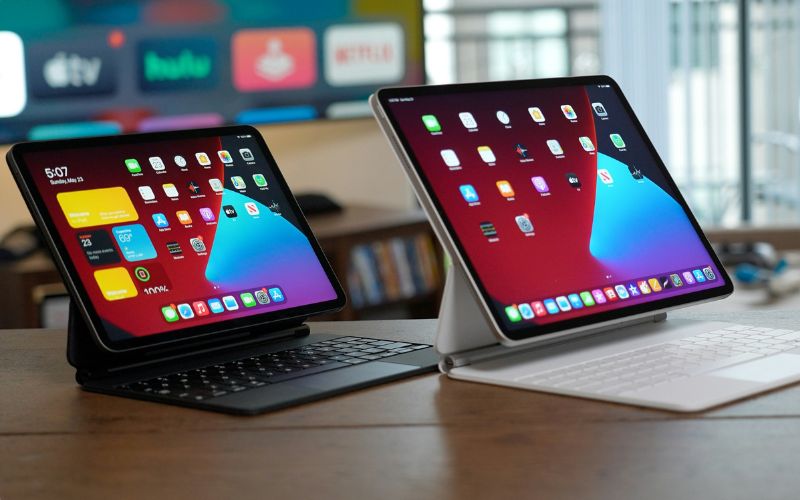
Some iPad options support iPad SIM card. (Image by Unsplash)
Not all iPads are built the same when it comes to cellular connectivity, so it’s important to know which models support SIM options. Understanding these differences helps you choose a device that fits your usage, whether you prefer physical SIMs or newer eSIM technology.
iPads With Physical SIM Slots
Can an iPad use a SIM card? Yes, many iPad models come with a physical SIM slot that allows you to insert a nano-SIM for mobile data access. This feature is typically available on Wi-Fi and Cellular versions of iPads, including older and some current models.
Using a physical SIM is straightforward: you simply insert the card provided by your carrier to activate a data plan. It’s a practical option for users who prefer swapping SIMs between devices or using local carriers while traveling.
iPads With eSIM Support
Newer iPad models increasingly support eSIM technology, which eliminates the need for a physical card. Instead, users can activate a mobile plan digitally by scanning a QR code or through a carrier app. This makes switching carriers or plans more convenient, especially for frequent travelers.
eSIM also reduces the risk of losing or damaging a SIM card, while still providing reliable access to mobile networks with the same performance as traditional SIMs.
iPads With Dual SIM Capability
Some modern iPads offer dual SIM functionality, combining a physical iPad SIM card with an eSIM. This allows users to maintain two separate mobile plans on a single device, which can be useful for balancing personal and work usage or switching between carriers for better coverage.
Dual SIM capability provides added flexibility, letting you manage data plans more efficiently without needing multiple devices or constantly changing SIM cards.
3. How to Insert a SIM Card Into an iPad
Setting up an iPad SIM card is a simple process, but doing it correctly ensures stable connectivity and avoids potential issues. Following each step carefully will help your device recognize the SIM and connect to your carrier without interruption.
Step 1: Turn Off Your iPad
Before inserting a SIM card, you should power off your iPad to prevent any hardware or software conflicts. Turning off the device allows the system to reset and properly detect the SIM once it is inserted.
This step is especially important if you are switching between SIM cards or setting up a new one. Taking a moment to shut down your iPad ensures a smoother and safer installation process.
Step 2: Locate the SIM Tray
Next, you need to find the SIM tray on your iPad, which is usually located on the side of the device. The exact position may vary slightly depending on the model, but it is typically a small slot with a pinhole.
If you have ever wondered, Can I have a SIM in my iPad?, Locating this tray confirms whether your device supports cellular connectivity. Only Wi-Fi and Cellular models include this feature.
Step 3: Insert the SIM Eject Tool
Use a SIM eject tool, or a small paperclip if necessary, and gently insert it into the pinhole on the SIM tray. Apply light pressure until the tray pops out slightly. It is important to press carefully and avoid using excessive force, as this could damage the tray or internal components. Once the tray is released, you can pull it out fully to prepare for inserting your SIM card.
Step 4: Place the Nano SIM Card in the Tray
Carefully place your nano SIM card into the tray, ensuring it aligns with the designated shape and orientation.
The SIM card should fit securely without needing to be forced into place. Double-check that the metal contacts are facing the correct direction so the device can read the card properly. Proper placement at this stage helps prevent connectivity issues once the iPad is turned back on.
Step 5: Reinsert the Tray and Turn On the Device
After positioning the iPad SIM card correctly, gently slide the tray back into the iPad until it sits flush with the device.
Once the tray is secure, power your iPad back on and wait for it to detect the iPad SIM card. The device should automatically connect to your carrier’s network if the SIM is active. You can then check your settings to confirm that mobile data is working as expected.
4. Setting Up Cellular Service for Your iPad
Many people start researching iPad SIM card when they want to activate mobile data on a new device. Setting up cellular service is an important step that allows your iPad to stay connected beyond Wi-Fi, whether for work, travel, or everyday use.
For those in the United States, the Lifeline Program is a government-supported initiative that helps eligible low-income individuals access affordable or free communication services. This program helps reduce the cost of staying connected and ensures access to essential communication tools.
*Important note: The price also varies based on real-time and your region. *
5. Final Words
Choosing the right setup for your iPad SIM card can make a big difference in how you stay connected throughout the day. From understanding compatibility to selecting a reliable carrier, each step plays a role in ensuring smooth and secure mobile access. With the growing need for flexible connectivity, having dependable service is more important than ever.