
On This Page
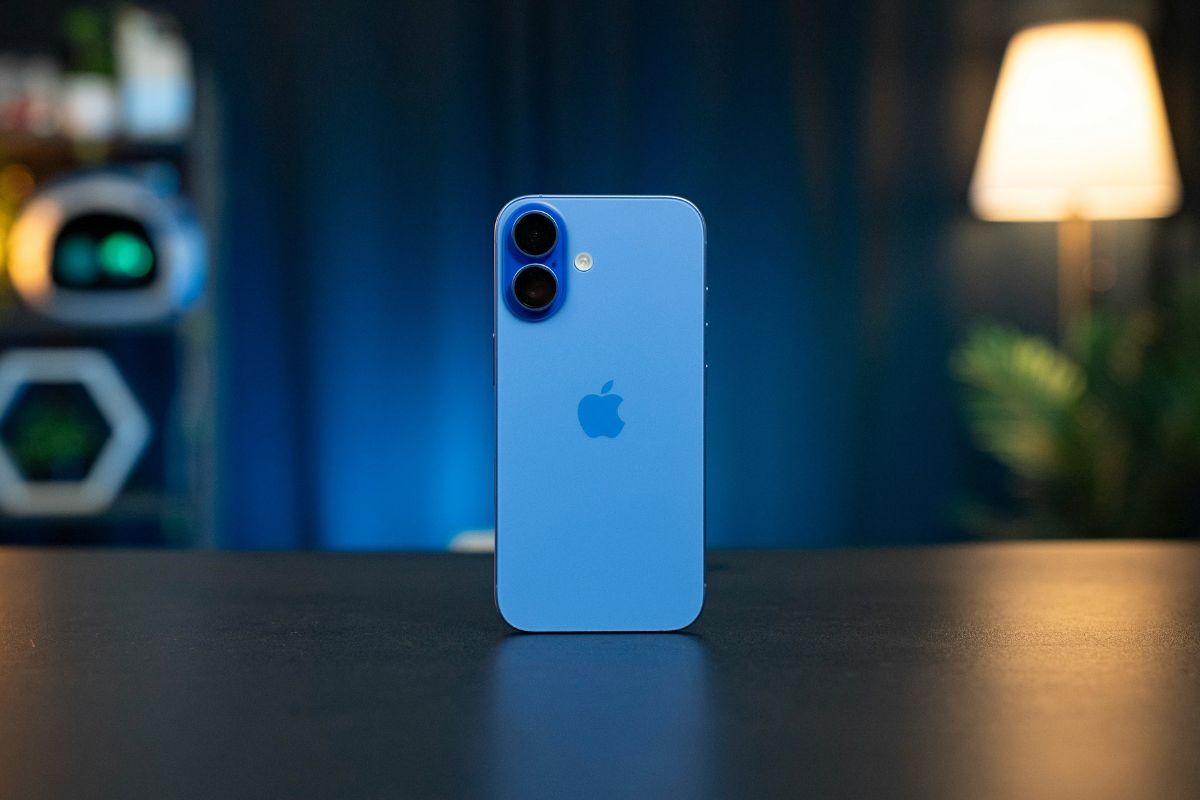
If you’re considering a new device, you might be asking whether the iPhone 16 SIM card slot is still included or if Apple has fully transitioned to eSIM. The answer depends on the region, as U.S. models continue with an eSIM-only design. Understanding your device’s SIM configuration is essential before activating service or switching carriers.
1. Does iPhone 16 Have a SIM Card Slot?
Does iPhone 16 have SIM card slot? It depends on your region. In the United States, the iPhone 16 models are eSIM-only and do not include a physical SIM card slot. This means users cannot insert a traditional nano SIM card into U.S. versions of the device.
Instead, cellular service must be activated digitally through an eSIM profile provided by a compatible carrier. Activation typically requires a Wi-Fi connection and carrier verification, but once completed, the process is fast and fully integrated into the device’s settings.
By removing the physical SIM tray, Apple continues its shift toward fully digital connectivity. Users can download and manage carrier plans directly in the Settings app, making activation and switching between networks more streamlined.
However, SIM configurations may differ in international markets, where some models may still include a physical SIM slot alongside eSIM support.
2. Why Apple Removed the SIM Card Slot in the U.S.
Apple removed the physical SIM tray from U.S. models as part of its long-term shift toward fully digital eSIM technology. By eliminating the iPhone 16 SIM card slot, Apple simplifies internal hardware design and reduces reliance on removable components.
This change improves device security because a physical SIM can no longer be removed to prevent tracking if a phone is lost or stolen. It also enhances water and dust resistance by removing an external opening in the device’s frame.
In addition, freeing up internal space allows Apple to optimize room for other components, such as battery capacity or updated hardware. Most importantly, eSIM-only models make carrier activation faster and more flexible, allowing users to switch plans digitally without visiting a store or handling a physical SIM card.
3. How to Activate eSIM Service on an iPhone 16
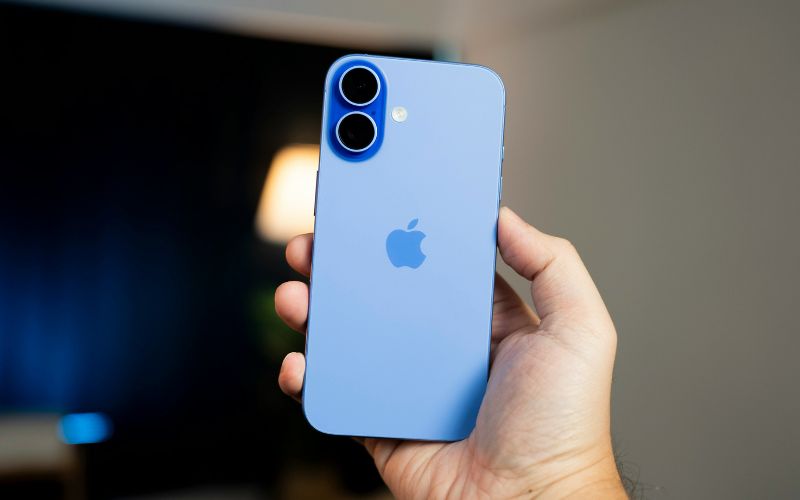
Four simple steps to activate eSIM service on an iPhone and things to know about iPhone 16 SIM card slot. (Image by Unsplash)**
Setting up cellular service on the iPhone 16 is simple, but it works differently from older models with physical SIM trays. Since U.S. versions no longer include a SIM card slot, activation is completed entirely through eSIM technology. This digital process allows you to download and install your carrier plan directly from your device settings. Follow the steps below to activate your eSIM service quickly and correctly.
Step 1: Connect to Wi-Fi and Open Settings
First, you need to ensure your iPhone 16 is connected to a stable Wi-Fi network. A reliable internet connection is necessary to download your carrier’s eSIM profile. Then open the Settings app and tap Cellular (or Mobile Data, depending on your region).
Step 2: Tap “Add eSIM”
Inside the Cellular menu, select Add eSIM. Because there is no physical iPhone 16 SIM card slot, this option is how you install and manage all cellular plans on the device. Your iPhone will now present the available activation methods supported by your carrier.
Step 3: Choose an Activation Method
You can activate your eSIM using one of the following methods:
- Transfer from a Nearby iPhone: If upgrading, place your previous iPhone nearby. Make sure both devices are unlocked, connected to Wi-Fi, and have Bluetooth enabled. Follow the on-screen prompts to securely transfer your existing plan.
- Scan a Carrier QR Code: Select the QR code option and scan the code provided by your carrier. The device will automatically download the eSIM profile.
- Use a Carrier App: Download your carrier’s official app from the App Store and follow the app’s instructions to activate your new line digitally.
Step 4: Confirm and Test Your Service
After the eSIM profile is installed, you should carefully review the carrier details displayed on your screen, including the plan name and phone number, before confirming activation. Once you approve the setup, the device will finalize the configuration and connect to the carrier’s network.
After activation is complete, check the signal bars at the top of your screen and place a test call or use mobile data to confirm that your service is fully active and working properly.
4. Prefer a Phone That’s Already Connected and Ready to Use?
Not everyone wants to deal with activation steps, SIM setup, or carrier transfers. Fortunately, assistance programs in the United States are designed to help eligible households stay connected without complicated technical processes.
- Free smartphones or tablets for eligible users
- Pre-activated service, so your device works right out of the box
- Talk, text, and data are included under qualifying monthly plans
This means you can receive a ready-to-use device with essential connectivity features already set up, making it easier to stay connected to work, school, healthcare, and family.
5. Final Words
Understanding whether the iPhone 16 SIM card slot is available helps you prepare properly for activation and choose a compatible carrier. In the United States, Apple’s transition to eSIM-only models reflects a broader move toward faster, more secure digital connectivity.