
On This Page
Is Samsung A14 eSIM compatible, and can you skip the physical SIM altogether? With eSIM becoming the new standard for flexibility and travel convenience, it’s important to know whether your device can keep up. Let’s break down what you need to check and how to find out in minutes.
1. Is Samsung A14 eSIM Compatible?
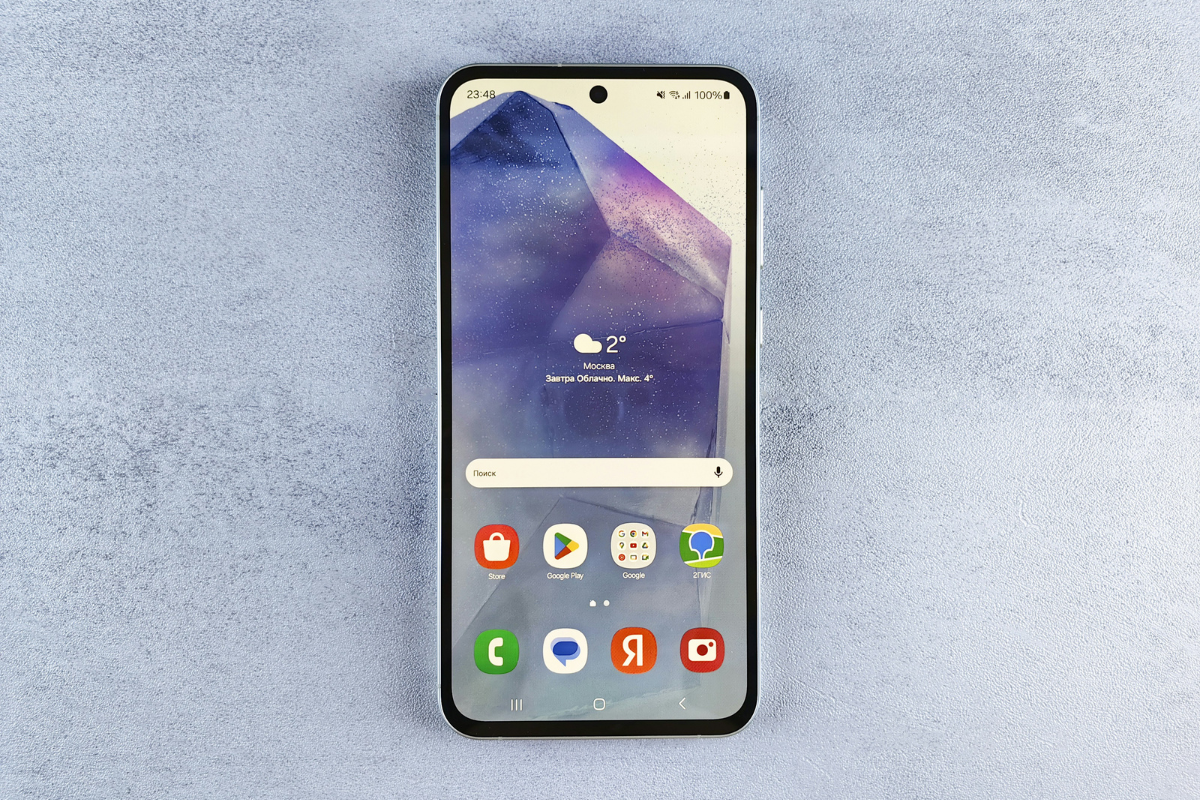
Is Samsung A14 eSIM Compatible (Image by Unsplash)
Is Samsung A14 eSIM compatible? It ultimately depends on the precise model version and the market where the device was released. While some newer Galaxy smartphones come equipped with eSIM technology, many standard Samsung A14 variants continue to operate with a physical SIM card only.
Because Samsung often adjusts features by region and carrier, specifications are not always identical worldwide. To avoid confusion, check your exact model number or contact Samsung directly to confirm whether eSIM is supported on your specific device.
2. How Do I Check If My Samsung Supports eSIM?
If you are unsure whether your Samsung phone includes eSIM functionality, the fastest way to verify is through the device settings. The steps below will help you determine compatibility quickly and accurately.
Step 1: Open Settings On Your Samsung Phone
Begin by unlocking your phone and opening the Settings app from either the home screen or app drawer. This section contains all core device controls, including network and SIM configurations.
Before proceeding, make sure your software is up to date, as older system versions may not display newer features like eSIM. Once inside Settings, you can move on to the connectivity options.
Step 2: Go To Connections
Scroll through the Settings menu and tap on Connections. This category manages WiFi, Bluetooth, mobile networks, and SIM-related features. Since eSIM is tied to your cellular configuration, it will typically be located here. Menu wording may vary slightly depending on your device model or Android version.
Step 3: Tap On SIM Manager
Inside Connections, select SIM Manager to access your SIM settings. This area allows you to manage your physical SIM and, if supported, any digital SIM profiles. If your phone includes eSIM capability, you should see options related to adding or managing a mobile plan digitally. If only physical SIM settings appear, eSIM support may not be available, though carrier or regional differences can sometimes affect what is displayed.
Step 4: Check For “Add eSIM” Or “Add Mobile Plan”
Look carefully for an option labeled Add eSIM, Add Mobile Plan, or something similar. The presence of this feature indicates that your device is eSIM ready. If available, you can proceed by scanning a QR code or entering activation details provided by your carrier. If the option is missing, your model or current firmware likely does not support eSIM functionality.
Step 5: Verify Your Samsung Model Compatibility
If no eSIM option appears, confirm your exact model number. Go to Settings, tap About Phone, and review the listed model information. Some Samsung devices support eSIM only in specific countries, meaning the same model name may offer different features depending on the region.
Step 6: Check Samsung Official Website Or Support Page
For complete certainty, visit the official Samsung website or contact customer support. By entering your precise model number, you can review detailed specifications and confirm which network features, including eSIM, are supported in your location.
How To Get A Free Galaxy Device?
Now that you have clarity on the question “Is Samsung A14 eSIM compatible?”, you may also be interested in how to receive a free Galaxy device.
- **Step 1 – Confirm Your Eligibility: **Start by making sure you meet Lifeline requirements. Qualification is generally determined by your household income level or enrollment in approved government assistance programs such as Medicaid, SNAP, SSI, or Federal Public Housing Assistance. During the process, you may be asked to submit supporting documents, including:
- Proof of participation in an eligible program (for example, an official approval or benefits letter)
- Income verification (such as recent pay stubs, tax documents, or Social Security statements)
- Choose the Lifeline plan available in your area
- Select a free or discounted Galaxy phone, or opt for the Bring Your Own Device option if preferred
- **Step 3 – Provide Details And Upload Documents: **Fill in your personal information and upload any required documentation if automatic verification does not go through.
- **Step 4 – Submit And Receive Your Device: **After submission, most applications are reviewed within 7 to 10 business days. Once approved, your Galaxy device will be delivered to your address free of charge.
4. FAQs About Samsung a14 eSIM
Find clear answers to the most common questions about SIM locking below.
What Should I Do If My Samsung A14 Is Not eSIM Compatible?
If your Samsung A14 lacks eSIM capability, you can continue using a standard physical SIM from the carrier of your choice without any issues. However, if you require eSIM for international travel or managing two lines on one device, upgrading to a Samsung model that clearly offers eSIM support may be the most practical solution.
Can I Use An International eSIM On Samsung A14 While Traveling?
An international eSIM works on a Samsung A14 only if your specific model supports eSIM and is carrier unlocked. If so, you can activate a travel plan without removing your physical SIM. If not, you will need to use a traditional physical SIM for international service.