
On This Page
In some instances, it is possible for the phone to show a connection error message while the SIM card is correctly inserted into the device. The majority of people have experienced the message ‘physical SIM network not available.’ The message generally indicates that the device is unable to connect to the cellular network.
1. What Does “Physical SIM Network Not Available” Mean?
The message “Physical SIM network not available” appears when a phone cannot connect to the mobile carrier’s network using the inserted SIM card.
Even though the SIM card is detected by the device, the phone is unable to access cellular services such as calls, text messages, or mobile data. This issue may occur due to network configuration problems, SIM card damage, carrier restrictions, or temporary signal outages in the area.
Some main problems cause the “physical SIM network not available”. (Image by Unsplash)
2. How to Fix “Physical SIM Network Not Available”
When a phone cannot connect to the cellular network, the problem may be related to the SIM card, device settings, or carrier network. By following a few simple troubleshooting steps, it is often possible to restore the connection and regain normal mobile service.
Step 1: Remove and Reinsert the SIM Card
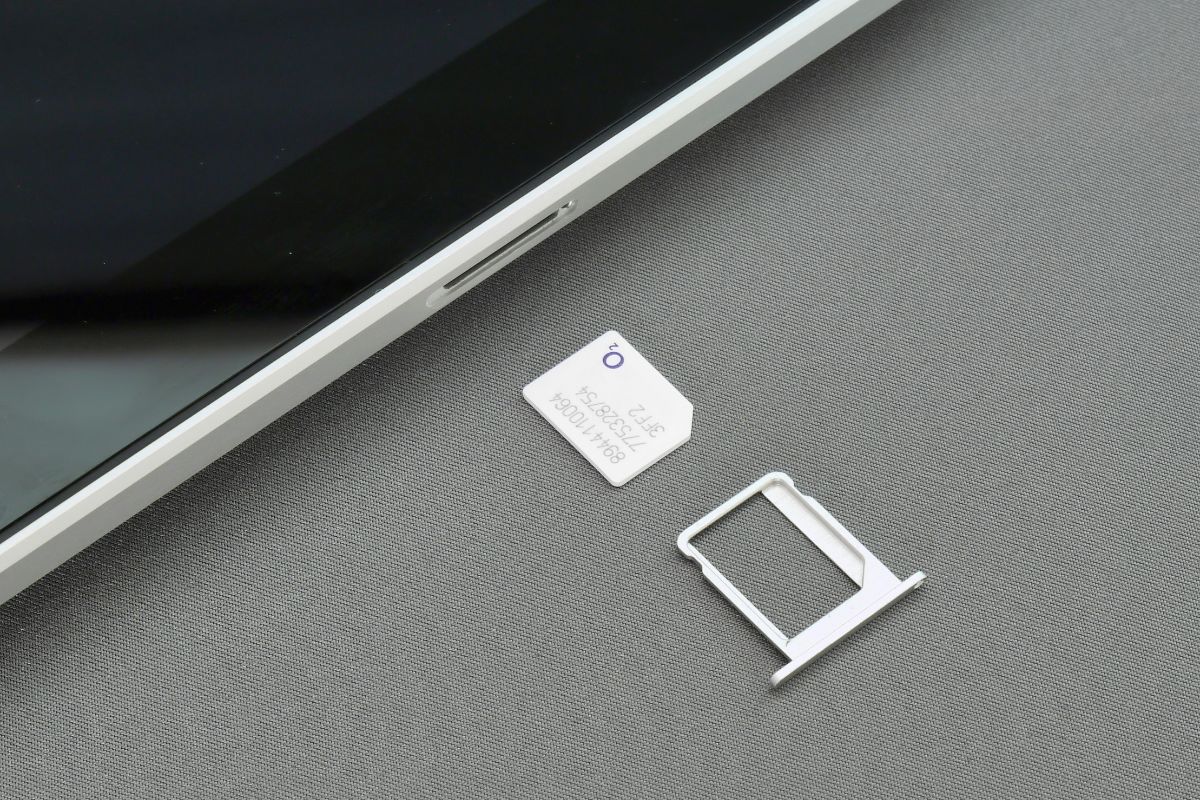
Start by turning off the phone and removing the SIM card from the SIM tray. Carefully check that the SIM card is positioned correctly and free from visible damage before placing it back into the tray. After reinserting the SIM card and powering the device back on, the phone may reconnect to the carrier network automatically.
Step 2: Check SIM Card Condition
Next, examine the SIM card closely for scratches, dust, or bent edges. A damaged or dirty SIM card can prevent the phone from communicating properly with the carrier network. In some situations where the **physical SIM network not available, **a message appears.
Cleaning the metal contacts with a soft, dry cloth or replacing the SIM card can resolve the issue.
Step 3: Reset Network Settings
If the SIM card appears to be in good condition but the phone still cannot connect to the network, resetting the network settings may help. This process clears saved Wi-Fi networks, Bluetooth connections, and cellular configurations. After the reset, the phone will rebuild the network settings and attempt to reconnect to the carrier.
Step 4: Update Phone Software
Outdated software can sometimes cause compatibility issues with mobile networks. Checking for system updates in the phone’s settings and installing the latest version of the operating system can fix bugs that affect connectivity. Keeping the device software updated also improves overall stability and performance.
Step 5: Test the SIM Card in Another Phone
Finally, try inserting the SIM card into another compatible phone to determine whether the issue comes from the SIM card or the device itself.
If the SIM card works normally in another phone, the original device may need further troubleshooting or repair. If the SIM fails to work in multiple phones, contacting the carrier for a replacement SIM card is usually the best solution.
3. SIM Card Problems That Can Cause This Error
In many situations, network connection errors are related directly to the SIM card rather than the phone itself. Understanding common SIM-related issues can help identify the cause and determine the best way to restore mobile service.
Damaged SIM Card
A SIM card can stop working properly if it becomes scratched, bent, or worn out over time. Damage to the metal contacts may prevent the phone from reading the card correctly, which can interrupt the connection to the carrier network.
In some cases, this may lead to errors such as a physical SIM network not available, especially when the device cannot communicate with the SIM card properly. Replacing the damaged SIM card with a new one from the carrier is usually the most effective solution.
Inactive or Expired SIM
A SIM card may also stop working if the associated mobile plan becomes inactive or expires. When the account is suspended or the service plan is no longer active, the carrier may block network access even though the SIM card is still inserted in the phone.
Checking the account status or renewing the service plan with the carrier can usually resolve this issue.
SIM Card Not Properly Activated
New SIM cards often require activation before they can connect to the carrier network. If activation has not been completed correctly, the phone may detect the SIM but fail to access cellular services. Completing the activation process through the carrier’s website or customer support typically restores normal network connectivity.
4. When a SIM Network Error Means It’s Time for a Fresh Start
Sometimes, the “physical SIM network not available” error appears when a SIM card is outdated, damaged, or no longer compatible with the carrier’s current network. In these cases, replacing the SIM card or switching to a newer device may be the most practical way to restore reliable connectivity.
Applying for service is typically a simple online process:
Step 1: Check Lifeline eligibility
Applicants first confirm whether they qualify for the Lifeline program. Eligibility may be based on participation in assistance programs such as Medicaid**, SNAP, SSI, **Federal Public Housing Assistance, or by meeting federal income guidelines.
Step 3: Choose a plan and device option
Eligible applicants can review available mobile plans and compatible devices. Depending on availability, you may be able to select a smartphone that supports SIM or eSIM activation.
Step 4: Complete the application
The applicant then fills out an online form with basic personal information such as name, address, and date of birth for identity verification.
Step 5: Submit documents if needed
If automatic verification is not possible, the system may request proof of eligibility, such as a benefits letter or income documentation.
Step 6: Receive the device and activation instructions
5. Final Words
The process of dealing with the physical SIM network not available error might interrupt calls, messages, and internet services when the phone fails to connect to the carrier network. It might be possible to fix the error simply by checking the SIM card, network settings, and replacing an inactive SIM card. The causes of the error will guide you through fixing the error and avoiding repeated errors when connecting to the network.