
On This Page
It’s one of the most confusing iPhone problems: your SIM card is detected, yet you still see “No Service.”
If you’re facing the SIM card inserted but no service iPhone issue, the problem usually isn’t the SIM itself; it’s a breakdown somewhere between your device and your carrier’s network. The cause can be as simple as a setting or as complex as a network or account issue.
1. SIM Card Inserted but No Service iPhone: What Does It Mean?
When you see “SIM card inserted but no service” on your iPhone, it means your device recognizes that a SIM card is present but cannot connect to your carrier’s network.
Many users ask, “Why does my iPhone say no service but I have a SIM card?” or even “Why is my SIM card inserted but no service?”.
In most cases, the issue isn’t the SIM itself; it’s usually caused by network coverage problems, incorrect settings, software glitches, or account-related issues that prevent your iPhone from establishing a stable connection.
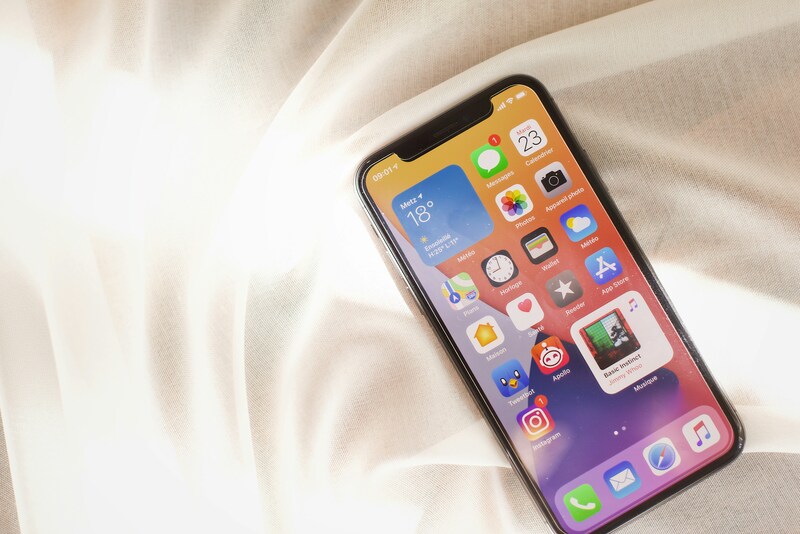
Why is my SIM card inserted but no service? (Image by Unsplash)
Carrier or network problems
One common reason behind “SIM card inserted but no service iPhone” is a temporary issue with the carrier network. This can happen during outages, maintenance, or weak signal coverage in your area.
If you are in a location with poor reception, your iPhone may not be able to connect even though the SIM card is working properly. In some cases, switching locations or turning airplane mode on and off can help the phone reconnect.
SIM card, device, or account issues
Another possible cause involves the SIM card itself or the account linked to it. A damaged SIM card, an inactive plan, or an account problem can all prevent your phone from accessing service.
Device-related issues can also play a role. If the iPhone is locked to a different carrier, it may not accept your SIM card. This can result in a “No Service” message even when the SIM is correctly inserted.
Can a software glitch cause a “no service” error?
Yes, a software issue can also trigger a SIM card inserted, but no service on an iPhone. System bugs, outdated iOS versions, or incorrect network settings can interfere with the phone’s connection to the carrier.
In some cases, a simple restart or software update can resolve the issue. If the problem started after a system change, it is more likely related to software rather than hardware.
2. What Happens When the SIM is Detected but Service Still Fails
When your iPhone detects the SIM but still shows no service, it means the connection process is incomplete. The SIM card provides your phone with account information, but the device must still communicate with nearby network towers.
If that connection fails, you will not be able to make calls, send texts, or use mobile data. However, the phone itself is still functional. You can continue using Wi-Fi, apps, and other offline features.
This situation often points to a communication issue between the phone and the carrier rather than a complete hardware failure. That is why many fixes focus on resetting connections or checking network settings.
3. How to Fix SIM Card Inserted but No Service on iPhone
If you are dealing with SIM card inserted but no service iPhone, there are several steps you can take to troubleshoot the problem. Most fixes are simple and do not require technical experience.
Check carrier settings and network status
Start by confirming that your carrier service is active. If your account is suspended or has billing issues, your iPhone will not connect to the network.
You should also check if there is a network outage in your area. Visiting your carrier’s website or contacting support can help you confirm whether the issue is local or device-related.
In addition, make sure your iPhone has the latest carrier settings installed. These updates help your phone communicate correctly with the network.
Remove and reinsert the SIM card
Another step is to remove the SIM card and place it back into the tray. Over time, dust or slight misalignment can affect the connection.
Turn off your iPhone before removing the SIM. After reinserting it, power the device back on and wait for it to reconnect to the network. This simple step often resolves minor connection issues.
If possible, you can also test the SIM card in another phone. This helps determine whether the problem is with the SIM or the iPhone itself.
Reset network settings or update iOS
If the issue continues, resetting network settings can help. This will clear saved Wi-Fi networks and cellular settings, allowing the iPhone to start fresh when connecting. Updating iOS is another important step. New updates often fix bugs that may cause SIM card inserted but no service iPhone errors.
After completing these steps, your phone should attempt to reconnect to the carrier. If the issue still remains, contacting your carrier may be necessary.
4. You May Get a Free iPhone with a Reliable SIM Card!
If your current SIM card or device continues to cause problems, it may be worth considering a more reliable service option, especially one designed for affordability and consistent coverage.
Eligible users can receive:
- A free SIM card with nationwide coverage
- Monthly service plans that typically include free talk, text, and data
- In many cases, a free or discounted smartphone, depending on availability and location
The application process is also straightforward.
For general guidance on Lifeline mobile service and network issues, you can visit official resources, such as the FCC.
Final Thoughts
Dealing with SIM card inserted but no service iPhone can be frustrating, but the issue is often fixable. In many cases, it comes down to network conditions, SIM status, or simple settings that need adjustment.
By checking your carrier, reinserting the SIM, and updating your device, you can resolve most problems quickly. If the issue continues, switching to a new SIM or service provider may be the best solution to restore reliable connectivity.