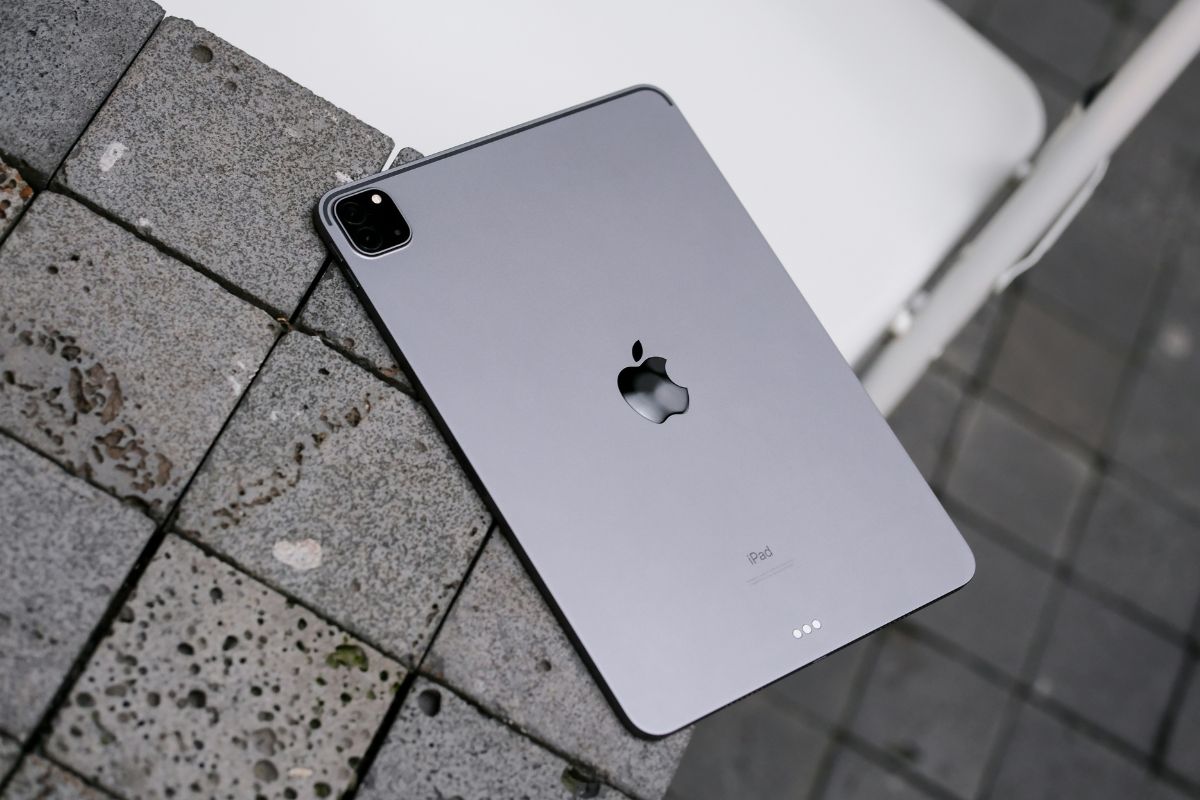

On This Page
A tablet with SIM card lets you stay connected anywhere without depending on Wi-Fi. It’s a practical choice for work, travel, or daily use when you need stable internet access on the go.
1. What Is a Tablet With SIM Card?
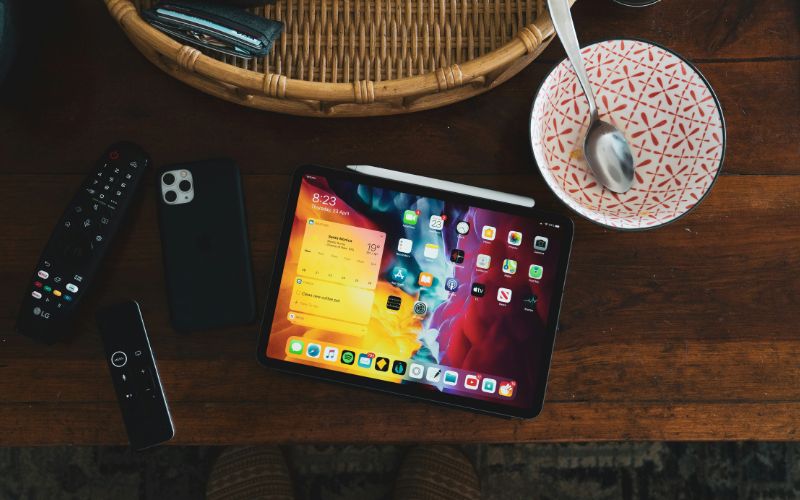
The definition of a tablet with SIM card. (Image by Unsplash)
Tablets today are more versatile than ever, especially when they support mobile connectivity. Understanding how SIM-enabled tablets work can help you choose a device that fits your lifestyle and connectivity needs.
Definition of Cellular Tablets
A tablet with a SIM card, often called a cellular tablet, is a device that can connect directly to mobile networks using a physical SIM or eSIM.
Unlike Wi-Fi-only tablets, it allows users to access the internet anywhere with cellular coverage, without depending on local Wi-Fi. These tablets function similarly to smartphones in terms of connectivity, enabling browsing, streaming, and online tasks on the go with greater flexibility.
Benefits of Using a Tablet With a SIM Card
Using a tablet with a SIM card provides added convenience and freedom, especially for users who need reliable internet access outside their home or office. It enhances the overall usability of the device by making it more independent from Wi-Fi networks.
Stay connected anywhere
You can access the internet wherever there is mobile network coverage, making it ideal for commuting, outdoor work, or traveling without worrying about Wi-Fi availability.
Improved security
Using mobile data helps reduce the risks associated with unsecured public Wi-Fi, especially when handling sensitive information like emails or financial transactions.
Better productivity
You can work, attend virtual meetings, send emails, and manage tasks on the go without interruptions, which is especially useful for remote or hybrid work lifestyles.
Reliable performance
Mobile networks often provide more stable connections than crowded public Wi-Fi, ensuring smoother browsing, streaming, and app usage.
Flexible data plans
Users can choose from a variety of plans based on their needs, whether for occasional use, travel, or daily connectivity.
Great for travel
You can easily switch to a local SIM or activate an eSIM plan abroad, helping you avoid expensive roaming fees while staying connected.
2. Popular Tablets That Support SIM Cards
Many modern tablets come with cellular capabilities, making it easier to stay connected without relying on Wi-Fi.
iPad (Wi-Fi + Cellular Models)
Apple’s iPad lineup, including iPad Pro, iPad Air, iPad mini, and the standard iPad, offers Wi-Fi and Cellular versions that support SIM cards or eSIM.
These devices are known for their performance, smooth ecosystem, and long-term software support. However, they often come at a higher price point, which may not be ideal for budget-conscious users.
Samsung Galaxy Tab Series
Samsung Galaxy Tab models, such as the Galaxy Tab A and Tab S series, are popular Android alternatives that support SIM cards.
These tablets provide a good balance between performance and affordability, with features suitable for both work and entertainment. Many models also support expandable storage, making them practical for everyday use.
Lenovo Tab Series
Lenovo offers several tablets with SIM card support, especially in its budget and mid-range lineup. These devices are designed for users who need reliable connectivity without spending too much. Lenovo tablets are often lightweight, easy to use, and suitable for browsing, streaming, and light productivity tasks.
3. How to Insert a SIM Card Into a Tablet
Inserting a SIM card into a tablet is a straightforward task, but each step should be done carefully to ensure proper connectivity. When the process is handled correctly, the device can quickly recognize the SIM and connect to a mobile network without issues.
Step 1: Turn Off the Tablet
You should begin by turning off the tablet completely before inserting the SIM card. This action allows the system to reset and prevents potential errors when detecting new hardware.
In many cases, a powered-off device is more likely to recognize the SIM correctly after startup. Taking this precaution also helps protect internal components during the installation process.
Step 2: Locate the SIM Tray
The next step requires you to locate the SIM tray, which is typically positioned along the edge of the tablet. Most manufacturers design it as a small slot with a pinhole for easy access.
If you are asking, Can I put a SIM card in a tablet?, identifying this tray confirms that your device supports cellular functionality. Tablets without this slot are usually Wi-Fi-only models.
Step 3: Use a SIM Eject Tool
At this stage, you need to insert a SIM eject tool or a straightened paperclip into the small pinhole. By applying gentle, steady pressure, the tray will pop out slightly. It is important to handle this step with care, as using too much force could damage the mechanism. Once the tray is released, you can remove it fully and prepare for the next step.
Step 4: Place the SIM Card in the Tray
You should carefully place the SIM card into the tray, making sure it aligns with the cut corner and fits the designated shape. The card must sit flat and secure without being forced into position. Proper alignment ensures that the tablet can read the SIM accurately and connect to the network without interruption.
Step 5: Reinsert the Tray and Turn On the Device
Finally, you need to slide the tray back into the tablet until it fits securely and evenly with the device’s surface. After that, turn the tablet on and allow it a few moments to detect the SIM card.
Once the system is ready, you can check the network settings to confirm that mobile data is active and functioning as expected.
4. Get a Free or Discounted Tablet with Data Now
Getting connected doesn’t always require a big budget, especially with support from government programs like Lifeline. By following a few simple steps, you can apply for a device and start using mobile data at little to no cost.
Step 1: Check Eligibility
Start by confirming whether you qualify for the Lifeline Program through income level or participation in assistance programs like SNAP or Medicaid. This step can be done independently before choosing a provider. It’s also a good idea to prepare documents such as proof of income or program participation to speed up the process later.
Step 2: Apply Online with a Trusted Lifeline Provider
Step 3: Enter Personal Information and Upload Documents
During the application, you’ll need to provide basic personal details such as your name, address, date of birth, and the last four digits of your Social Security Number (or an alternative ID).
In some cases, the system can verify your eligibility automatically. If not, you may be asked to upload supporting documents to confirm your qualification.
Step 4: Complete Application and Wait for Delivery
After filling in all required information, review your application carefully and submit it for approval. If approved, the provider will ship your selected device directly to your address.
5. FAQs About Tablets With SIM Cards
Many users have questions about how tablets with SIM cards work and what they can actually do. Understanding these common concerns can help you make better decisions when choosing and using a cellular-enabled tablet.
Do tablets with SIM cards make phone calls?
Most tablets with SIM cards are designed primarily for mobile data, not traditional voice calls. However, you can still make calls using internet-based apps like FaceTime, WhatsApp, or Skype. Some tablets also support calling features through VoIP services or when connected to a smartphone.
Is eSIM available on tablets?
Yes, many modern tablets now support eSIM technology alongside or instead of physical SIM cards. This allows users to activate a data plan digitally without inserting a SIM. eSIM makes it easier to switch carriers or manage multiple plans directly from the device.
Can I use my phone’s SIM card in a tablet?
In many cases, you can insert your phone’s SIM card into a tablet if it uses a compatible size and supports the same network bands. However, some mobile plans may have restrictions or may not function optimally on a tablet. It’s always a good idea to check with your carrier to ensure compatibility and avoid unexpected issues.
6. Final Words
Choosing a tablet with SIM card can significantly improve how you stay connected in your daily life. With the flexibility of mobile data, you are no longer limited by Wi-Fi and can work, travel, or stay entertained anywhere. Understanding your options, from SIM to eSIM, helps you make smarter decisions based on your needs and budget.